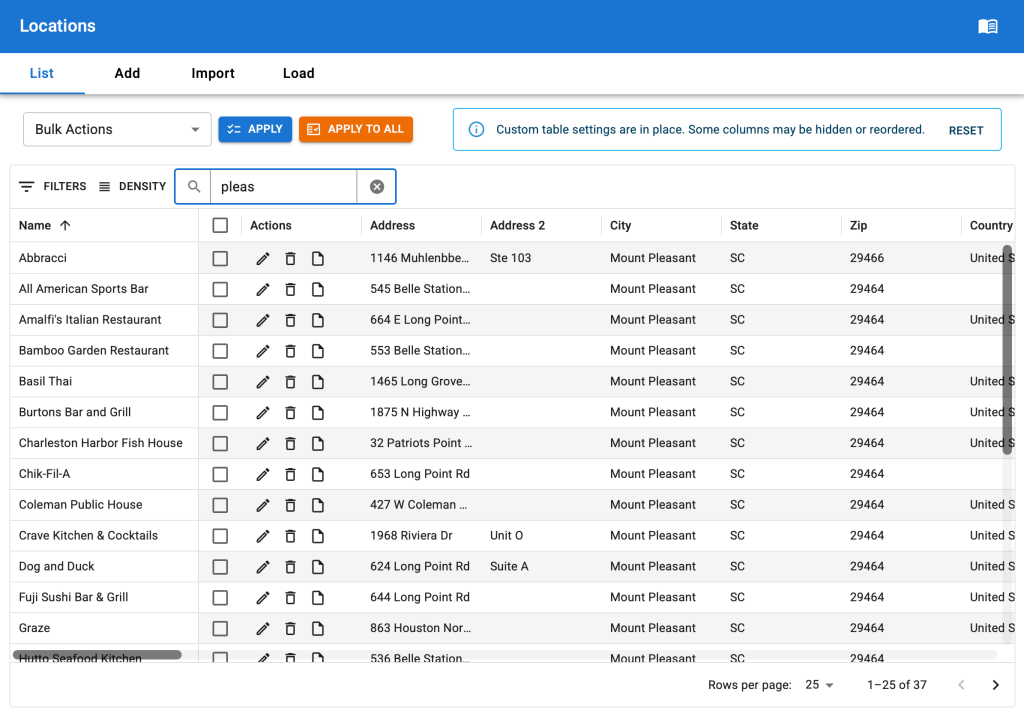
The update from the legacy and very outdated PHP-based WordPress table to modern React based interface design has happened. This is the first iteration with other changes planned in the coming months. Here are some of the updates including some changes from the July release that are already online.
Retooled Quick Search
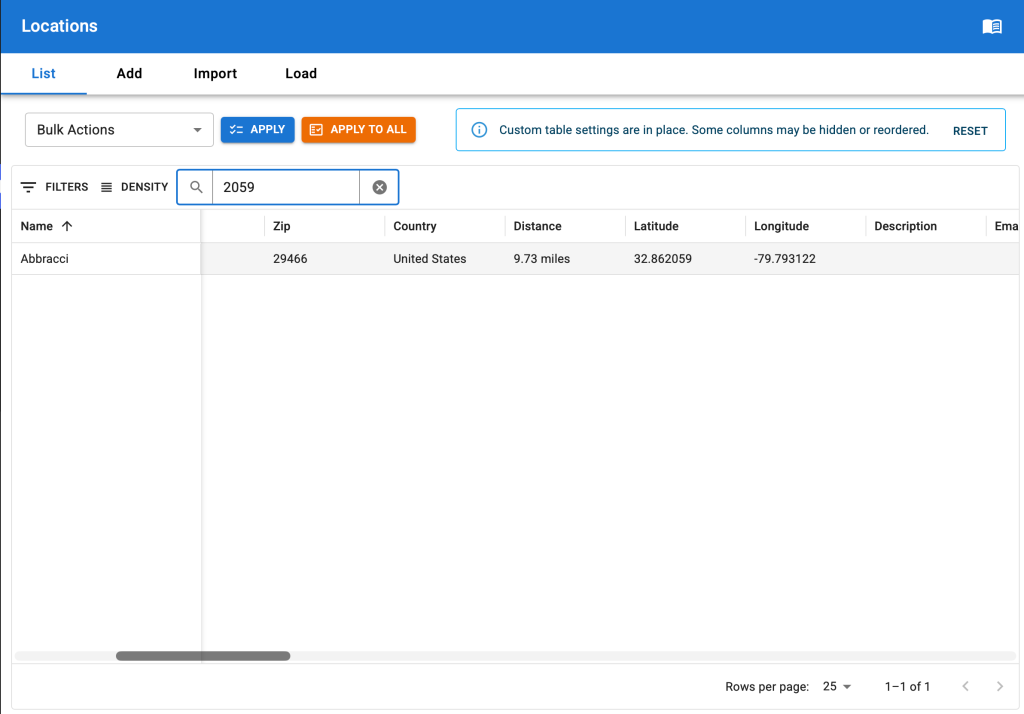
The revised quick search feature.Searching across all fields for the 2059 text (found it in the latitude field in this example).
We’ve completely retooled the quick search feature.
It still searches across multiple fields, but it now searches across all text fields in the location set not only the name and primary address fields. And it is fast. Much faster than past iterations.
Filter Locations
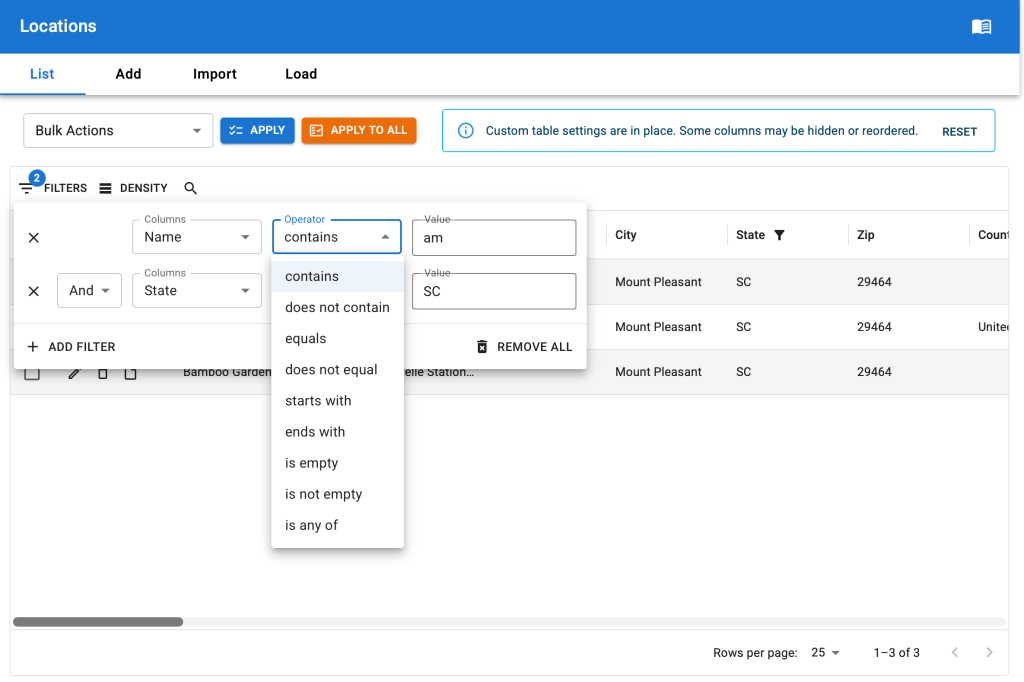
Complex location filters coming in the August 2026 release of SLP.
Complex filters can be built on locations. All of the filters we had with the previous filters drop down menu are still available, plus dozens of additional options.
The filters apply across the entire data set with response times that are vastly improved over the prior versions. Large sets of locations can now be filtered with ease.
Built a wide variety of logic combinations for any location data field.
Data matching options include:
contains | does not contain
equals | does not equal
starts with
ends with
is empty | is not empty
is any of
All fields can be combined with AND or OR logic to display specific locations.
Change The Column Layout
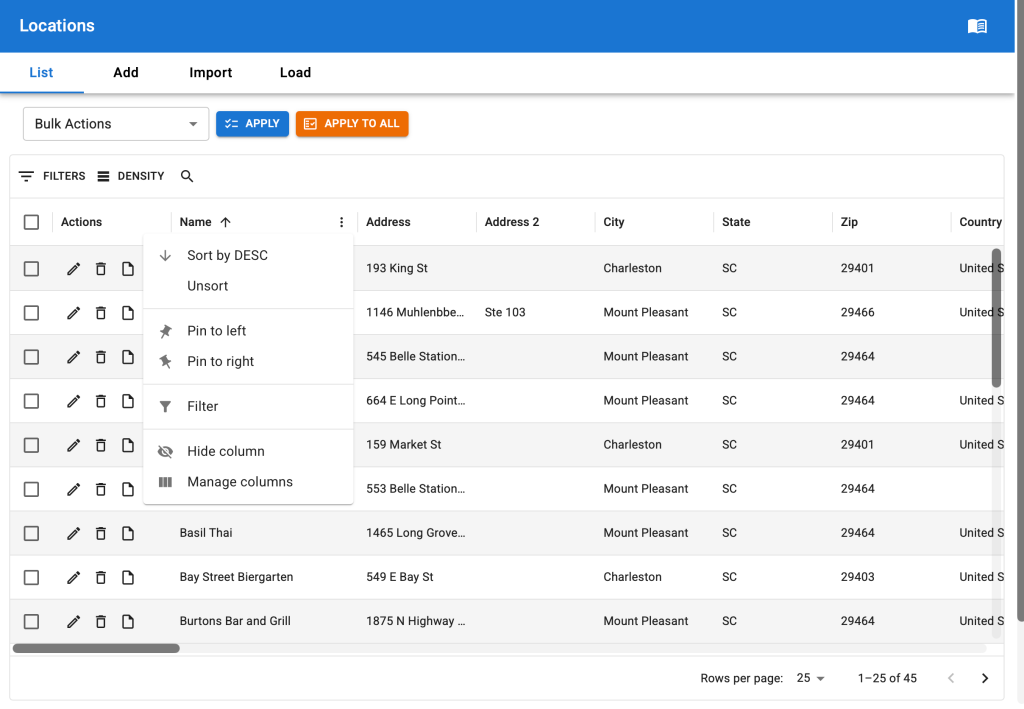
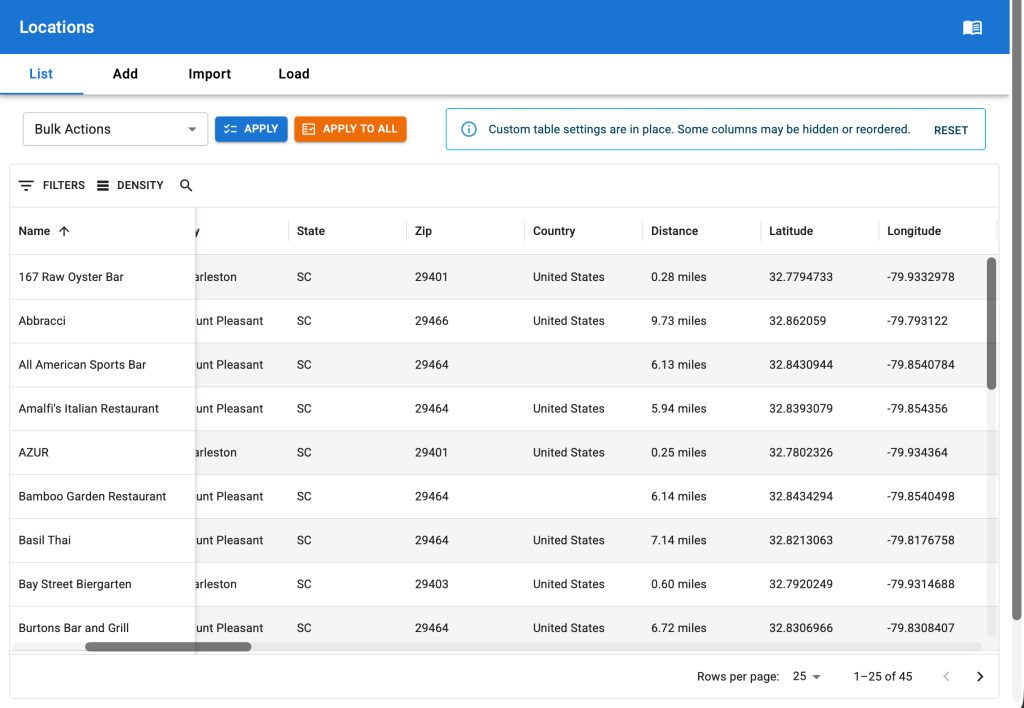
A menu of new column layouts.The name column pinned to the left, the other data scrolls under it.
A myriad of options are now available for how you see your data on the locations list.
Sort columns in any combination.
Drag columns to reorder them.
Pin columns to the left or right of the table.
Hide columns.
The best part is Store Locator Plus® remembers your customization between sessions. No more re-sorting or changing column layouts every time you log back in or visit a different page. We’ve added a notification with an easy reset button in case you ever need to quickly get back to the default layout; Something we’ve found useful when we can’t remember which columns we’ve hidden.
Change The Row Density
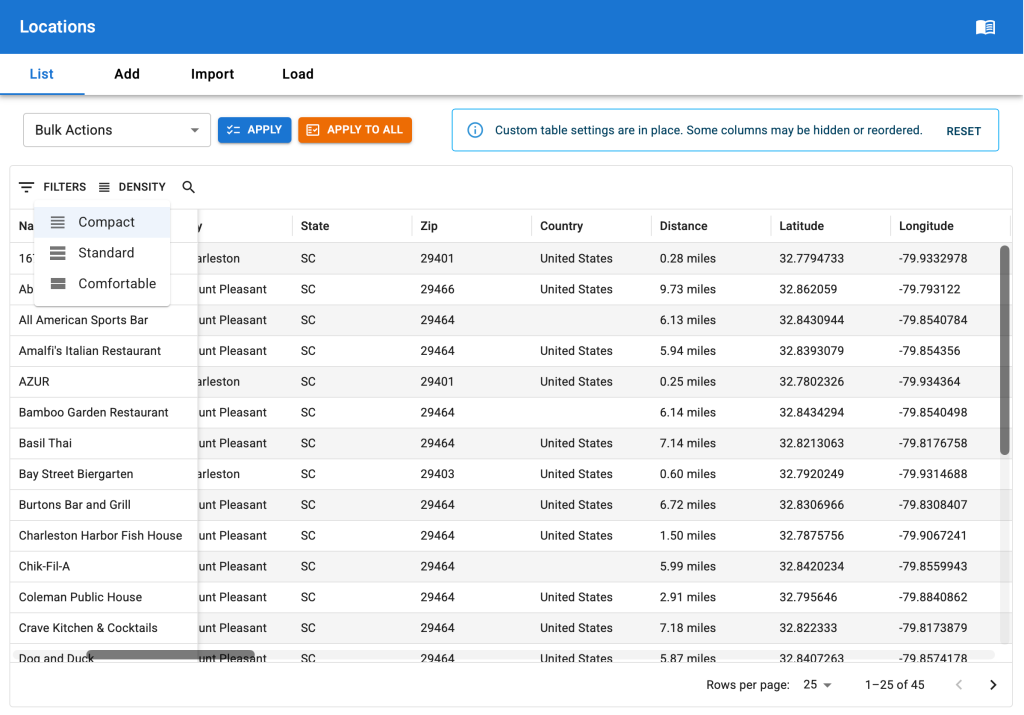
Row density options.
While more row management options (like grouping, ordering, etc.) are coming – for now we’ve given the basic option to set the height of the display with several row density options available: Compact, Standard, and Comfortable.
Goal: At the top of the Locations | List interface there is a search box for locations. This is currently rendered and managed with PHP+HTML+jQuery. Add this to the new React LocationsTableHeader component and deprecate the legacy code.
Research
Current UI/UX
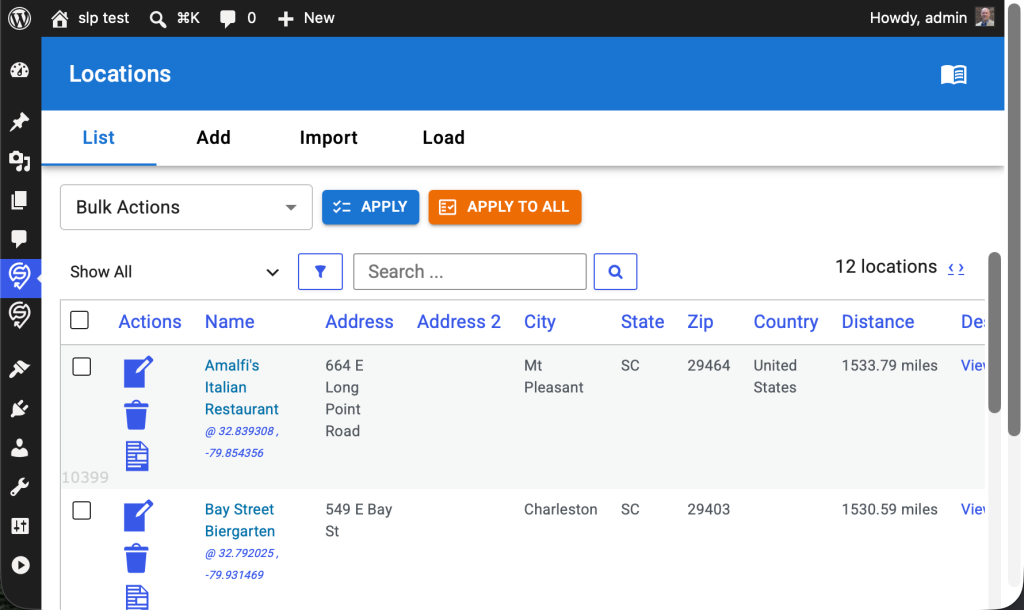
This image shows the new Bulk Actions React component with the legacy filter and search PHP+HTML+jQuery UI below.
HTML output string is generated in \SLP_Admin_Locations::createstring_SearchBlock. This uses HTML based onkeypress and onClick attributes to trigger JavaScript actions. Pressing enter in the search box or clicking on the search icon runs the jQuery-driven AdminUI.doAction(‘search’)
Development
Create A New LocationsSearch React Component
Create a new LocationsSearch React component that is a sibling of the LocationsBulkActions React component. Create a search input box with a search icon button after that triggers the search.
UI/UX Updates
In LocationsTableHeader use MUI components to wrap all children that will allow for horizontal stacking of children.
LocationsTableHeader should take 100% of the width of parent .react-wrapper div.
If the children don’t fit
wrap the entire child component to the next line
do not use a horizontal scroll bar
Place the new LocationsSearch React component to the right of the LocationsBulkActions component.
All of for a future LocationsFilter component to be placed between the LocationsBulkActions and LocationsSearch components.
The Datatables JavaScript library is outdated based on a legacy jQuery oriented approach. The goal is to replace DataTables.js with the licensed MUI DataGridPro interface.
With the current version of Store Locator Plus® the DataTables jQuery interface was unused. It used to be part of the location table list interface to try to modernize the WordPress list tables.
Goal: Create a persistent accounting information data store using the built-in WordPress Multisite database surfaces.
The table should follow some standard rules that will allow us to implement CRUD operations via REST endpoints in the MySLP Dashboard plugin.
Tasks
One time task “Create Or Update The Database” when the MySLP Dashboard version indicates a change.
Create a Monthly Ledger User Interface to allow for manual CRUD operations on the slp_accounting_monthly_history table.
Monthly History Data : Environment
Environment
All accounting history data will reside in tables for the main WordPress super admin account.
The Main WordPress Super Admin account site ID is stored in the PHP constant SITE_ID_CURRENT_SITE and should be 1. The database table prefix should come up as wp_ unlike user accounts that start with wp_<user_site_id>.
slp_accounting_monthly_history Table
The table should be named $wpdb->prefix . “slp_accounting_monthly_history” resulting in a table name of wp_slp_accounting_history.
slp_accounting_monthly_history Structure
ID – a unique ID to allow for explicit record I/O for CRUD operations.
KEY – a short string indicating the type of monthly data for example:
“SAAS_REVENUE”
“PLUGIN_REVENUE”
AMOUNT -an integer representing the numeric value for the key for example:
3500 which may represent “35.00” or 35 dollars in our UI surfaces
DATE – a date and time for they entry representing the date this value represents NOT when the data was created or modified
This Accounting Monthly History Data interface will run various monthly cron jobs to collect data and store it in this table. We will use this data to product things like monthly revenue graphs for the SaaS Account Overview dashboard. The graph will show SaaS Revenue from active accounts on a monthly basis.
We will do the same providing a manual process to add other revenue such as WordPress plugin revenue under “PLUGIN_REVENUE” keys.
We will allow for users to change the Line Chart revenue graph to show “monthly” or “yearly” graphs. Future data keys may warrant daily graphs.
Task: Create Or Update The Database
When the MySLP Dashboard module version (plugin version) changes, run a database “create or update” hook to create the table or modify it as needed.
Copy the design pattern in the Store Locator Plus plugin in the \SLP_Admin_Activation class. wp-content/plugins/store-locator-plus/include/module/admin/SLP_Admin_Activation.php This is fired from \SLPlus::initialize_after_plugins_loaded When the Store Locator Plus version reported is newer than the installed version for the plugin (see version_compare( $this->installed_version, SLPLUS_VERSION, ‘<‘ )) , the MySLP Dashboard should follow that pattern.
Task: Monthly Ledger User Interface
Admin Menu
Add a submenu with the label “Monthly Ledger” under the “Accounting” admin sidebar menu we created in \MySLP::create_network_admin_menu.
Add a new My MySLP_Account_MonthlyLedger PHP React loader and helper class. Follow the design pattern of \MySLP_Accounting in wp-content/plugins/myslp-dashboard/include/accounting/MySLP_Accounting.php Place it in the same directory as MySLP_Accounting.php as a sibling.
Create a new React component that allows basic CRUD operations on the slp_accounting_monthly_history Table. Attach it to the MySLP_Account_MonthlyLedger PHP React loader. Follow the UI design pattern of the AccountingPanel React component at wp-content/plugins/myslp-dashboard/src/accounting/accounting.tsx Use a MUI X DataGridPro component as the primary table interface. Allow for pagination, starting with a default page length of 25 records. Sort the records by DATE descending on initial load so we see newer records at the top. Provide an add record interface where a user can enter the KEY, AMOUNT, DATE. Provide an inline edit record interface on the DataGridPro table to allow users to click on they KEY, AMOUNT, or DATE field on an existing record and change it. Provide a delete option for each record.
Data Interface
Use REST for all CRUD operations and to fetch the initial data set.
When records are added the backend data interface should:
Ensure all keys entered are trimmed (no leading/trailing spaces) and are shifted to uppercase.
AMOUNT is stored only as an integer.
DATE field needs to allow for flexible input converting text input into a best guess for the date to be stored as a date-time entry in the database. Examples:
“05/2026” is May 2026 which should be recorded as the date time 2026-05-01 00:00:00
“05/01/2026” is May 1st 2026 which should be recorded as the date time 2026-05-01 00:00:00
“May 2026” is May 2026 which should be recorded as the date time 2026-05-01 00:00:00
Allow for various separators such as / or – or .
05-01-2026 is the same as 05/01/2026
05.01.2026 is the same as 05/01/2026
Use standard Date/Time JavaScript or React libraries for data manipulation.
The manipulation can be not the front-end (React/JavaScript) before communicating with the REST endpoint.
The backend should do basic sanitation before recording data.
The “Buffer” For Overages
Legacy billing was sometimes strict on the overage policy. The revised automated report, not so much as there is a 100 views “free buffer” on overages.
2026 : Jan | Feb | Mar | April | May
Acct ID
Spreadsheet
New50
BRmarket
0 – 0 – 15 – 0 – 20
0 – 0 – 15 – 0 – ?
MKbevis
0 – 0 – 5 – 0 – 0
0 – 0 – 0 – 5 – 5
TKESeck
0 – 0 – 0 – 5 – 0
0 – 0 – 0 – 0 – 0
Arbor
0 – 0 – 0 – 0 – 35
0 – 0 – 0 – 0 – 35
UWS
0 – 20 – 25 – 45 – 115
15 – 20 – 25 – 45 – 115
Gary
10 – 15 – 20 – 25 – 25
0 – 15 – 20 – 20 – 25
The actual billing and monthly views do not always match.
Part of this is the monthly view total is triggered when the Stripe billing renews. When a Stripe renewal is successful the SLP SaaS platform records the current view count to a permanent record of views for the previous customer billing period (prior month). The system is imperfect and need refinement as Stripe sometimes needs to reprocess subscription renewals for a myriad of reasons. As such the view tally is sometimes recorded more than once and reset more than once. This impacts the total view count recorded for the month as well as the billing.
Starting in June 2026, we are using the new monthly views report as the source of truth. This may not be perfect during the period we work to resolve these corner cases with Stripe renewals. The map views will never be OVER actual usage. Worst case, we bill a little LESS due to this issue.
Overages remain billed at $5 for a block of 1,000 extra views. As an unofficial policy while we work toward resolution, all accounts now have a “100 free overage views” allowed on their account. Thus, if an account is over views we don’t charge for the block until the new block gets 101+ views. Examples: limit is 5,000 – actual views is 5099 – billing is 0 extra blocks as 99 is under the 100 grace = $0 limit is 5,000 – actual views is 5250 – billing is 1 extra block at 250 exceeds the 100 grace = $5
limit is 5,000 – actual views is 8099 – billing is 3 extra block as 99 is under the 100 grace = $15
limit is 5,000 – actual views is 8250 – billing is 4 extra blocks = $20 (1 extra block: up to 6,000 views, 2: up to 7,000 views, 3: up to 8,000 views, 4: up to 9,000 views) = $20
As a result, months prior to June 2026 may not align with billing and view count.
We are creating a full Store Locator Plus accounting dashboard to track both the SaaS platform as well as WordPress plugin sales.
Sales Data
The primary source of truth for sales data will come from Stripe. Any references to PayPal payments or accounts can be considered legacy information and can be left out of the accounting panel.
The payment module holds the Stripe API module and related code for payment system communications.
User Interface
Stage 1 : Accounting Overview Scaffolding
Accounting Sidebar Menu
A new sidebar menu should be created in WordPress for super admin users only. \MySLP::create_network_admin_menu should be used to create and attach the menu. Follow the design pattern for the configure menu option, code snippet follows:
Unlike the main configure menu page that is rendered via \MySLP::render_configuration_page the new accounting module should load and render a React PHP helper class. We want this interface to be primarily React driven.
The WordPress PHP React Helper Class
Follow the \MySLP_Customer_Profile class for guidance on implementing a React user interface within WordPress. I suggest creating a new class MySLP_Accounting in wp-content/plugins/myslp-dashboard/include/accounting.
The React AccountingPanel Component
The React components that \MySLP_Accounting loads with the help of the wp-scripts node package should live in wp-content/plugins/myslp-dashboard/src/accounting. This directory should have a block.json and an accounting.tsx file.
block.json should probably look like this:
{
  "script": "file:profile.js"
}
The accounting.tsx TypeScript should contain the React accounting component. This new React component should be named AccountingPanel. It should follow the UX design pattern of the ProfilePanel component in wp-content/plugins/myslp-dashboard/src/profile/profile.tsx
The initial user interface will only have a single submenu (SLPTabsBar Tabs components) for the main page which should be labelled “Overview” which is already selected and open. It will render the AccountingOverviewPanel component noted below.
AccountingOverviewPanel Component
A supporting AccountingOverviewPanel React component should be created. If the WordPress wp-scripts supports it, this can go in the same directory as the AccountingPanel component : if not place it in wp-content/plugins/myslp-dashboard/src/accounting_overview
This component should be a React Dashboard that shows overall accounting metrics. To start with we will want to show the total number current active accounts and total amount of payments from those active accounts. The ManageCustomers React component (wp-content/plugins/myslp-dashboard/src/manage_customers/manage_customers.tsx) displays this data in the AdminHeader children via a pair of Chips. Use the same REST endpoints to fetch this data and display it.
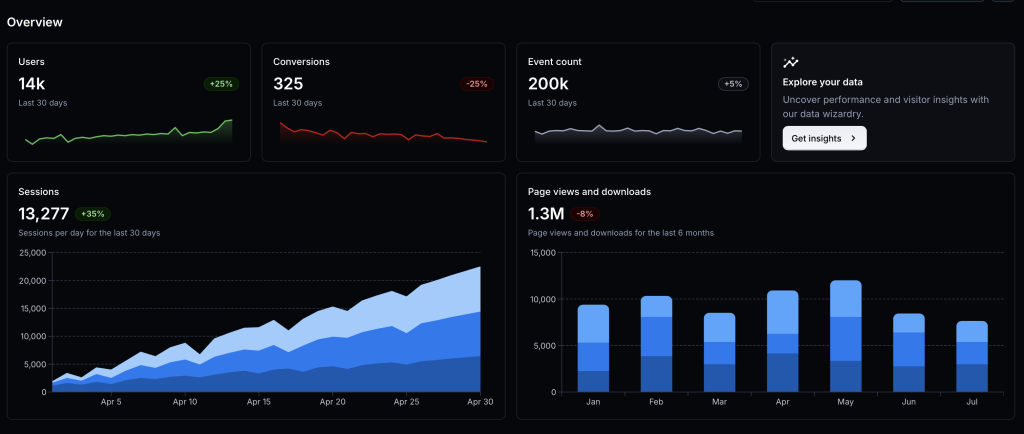
Here is a screen shot of the Material UI Dashboard Template that is referenced.
For now we need the cards for:
Accounts in place of Users with the active count below. We will add a data table for historical trends and a graph below it in the future. Clicking on the user count in the account card should redirect the UX to load the Manage Customers page at /wp-admin/network/admin.php?page=customer_list
Payments in place of Conversions with the total payment amount below. This too will eventually have trends stored in a data table that we will create later.
AI Summary
Junie Pro Summary
Completed setup and implementation prep for the accounting dashboard work in myslp-dashboard, including running required start-revision on branch accounting.

• Implemented Stage 1 accounting UI scaffold: new Accounting admin page, React entrypoint, and overview metrics/cards with click-through to Manage Customers.

• Added new files: include/accounting/MySLP_Accounting.php, src/accounting/accounting.tsx, and src/accounting/block.json.

• Updated integration points in include/MySLP.php and constants/version metadata in myslp-dashboard.php and package.json.

• Validation status: lint checks for new files passed (only a non-blocking TS import style warning noted earlier), diff checks passed, and you confirmed npm install + npm run build succeeded locally with generated build/accounting/accounting.js and build/accounting/accounting.asset.php present.

• Environment note: Junie shell still lacks local php tooling and direct GitHub auth; you requested follow-up guidance on PAT-based auth after task completion.
Junie Release Notes • Scope: No new product-code changes were made after the previously summarized accounting dashboard work in myslp-dashboard. • Skills/Environment updates this session: Reloaded skills via Vendors/JetBrains/relink_skills.sh; available skills now include /wordpress-release-notes. • Code impact since last implementation summary: None. • Build/Test status: No additional build or test runs were performed after the earlier confirmed successful npm install and npm run build for myslp-dashboard. Included Previously Completed Work (for continuity) • Added Accounting admin page scaffold and React entry (include/accounting/MySLP_Accounting.php, src/accounting/accounting.tsx, src/accounting/block.json). • Wired menu/render integration in include/MySLP.php and version bump artifacts from start-revision (myslp-dashboard.php, package.json).
In JavaScript console on the Location Details page: Description
[Error] Warning: ReactDOM.render is no longer supported in React 18. Use createRoot instead. Until you switch to the new API, your app will behave as if it’s running React 17. Learn more: https://reactjs.org/link/switch-to-createroot printWarning (react-dom.js:73) error (react-dom.js:47) render (react-dom.js:29680) (anonymous function) (script.js:101:67958) Global Code (script.js:101:68032)
Git repositories that support projects needing Docker images and containers should follow this directory standard. Any project that uses vendor tools or apps should store support data in a similar subdirectory structure. Notes here are relative to the Repository Root.
Docker Files
Composer
The Docker compose file should end up here: ./Vendors/Docker/Composers
This is for files the build and launch containers.
Images
This is for stuff that builds images used to launch custom containers.
The files that support building images should end up here: ./Vendors/Docker/Images Dockerfile or Dockerfile-openclaw may live here.
Supporting files for building images go in these directories: ./Vendors/Docker/Images/Files For files that are put in the SLP SaaS repo that support image building, public files. This often contains subdirectories for files to copy from the host (stored in the SLP_SaaS repo) to the guest. For example: ./apache/sites-avaiable/000-default.conf – for a Docker container with Apache websites ./php/docker-php-ext-redix.ini – for a Docker container with PHP and Redis support ./ssl/_wildcard.storelocatorplus.com+2.pem – for an SSL cert Things in Files/* in this Docker folder are often copied via Dockerfile to build the image
./Vendors/Docker/Images/Secrets It can contains supporting secret files that do not get commited to the repo. For example: do-not-commit-codebuild-vars.env This is for environment variables needed for Code Build on AWS with values set like AWS_DEFAULT_REGION=us-east-1 The README instructions would say something like “copy ./Images/Secrets-Examples/codebuild-vars.env to ./Images/Secrets/do-not-commit-codebuild-vars.env
SLP_SaaS_Docker_Directory_Standard.md
# SLP SaaS — Docker Directory Standard

This document captures the current **directory layout conventions** for Docker-related assets used with the **SLP SaaS** project, as described by Lance.

## Project roots (MBP)

- **SLP SaaS repo root**
  - `/Users/lancecleveland/phpStorm Projects/SLP_SaaS`

- **Testing area (under SLP_SaaS)**
  - `/Users/lancecleveland/phpStorm Projects/SLP_SaaS/Testing/`

- **myslp-cypress repo (local checkout)**
  - `/Users/lancecleveland/phpStorm Projects/SLP_SaaS/Testing/myslp-cypress`

## Canonical Docker directory structure (within myslp-cypress)

All Docker-related standards below are relative to:

- `/Users/lancecleveland/phpStorm Projects/SLP_SaaS/Testing/myslp-cypress/Vendors/Docker/`

### 1) Compose files

**Docker Compose files** should live here:

- `Vendors/Docker/Composers/`

Example (full path):

- `/Users/lancecleveland/phpStorm Projects/SLP_SaaS/Testing/myslp-cypress/Vendors/Docker/Composers`

Notes:
- This is the standard landing zone for any new compose setup (e.g., an E2E Eddie/OpenClaw + Cypress compose).

### 2) Image build definitions

**Files that support building images** should live here:

- `Vendors/Docker/Images/`

Example (full path):

- `/Users/lancecleveland/phpStorm Projects/SLP_SaaS/Testing/myslp-cypress/Vendors/Docker/Images`

Notes:
- Dockerfiles may live here, including variants like `Dockerfile` or `Dockerfile-openclaw`.

### 3) Public build-support files (committed)

**Supporting files used during image builds** (intended to be committed) should live here:

- `Vendors/Docker/Images/Files/`

Example (full path):

- `/Users/lancecleveland/phpStorm Projects/SLP_SaaS/Testing/myslp-cypress/Vendors/Docker/Images/Files`

Conventions:
- This directory often contains subdirectories that mirror container filesystem targets.
- Contents are typically copied into an image via `Dockerfile` using `COPY ...`.

Examples of typical contents:
- `./apache/sites-available/000-default.conf` — Apache site config
- `./php/docker-php-ext-redix.ini` — PHP extension/config file (example)
- `./ssl/_wildcard.storelocatorplus.com+2.pem` — SSL cert material (example)

### 4) Secrets (NOT committed)

**Supporting secret files** (not committed to the repo) should live here:

- `Vendors/Docker/Images/Secrets/`

Example (full path):

- `/Users/lancecleveland/phpStorm Projects/SLP_SaaS/Testing/myslp-cypress/Vendors/Docker/Images/Secrets`

Conventions:
- This may contain env var files or other sensitive build/runtime inputs.
- Example secret file:
  - `do-not-commit-codebuild-vars.env`

Example usage pattern to document in READMEs:
- “Copy `./Images/Secrets-Examples/codebuild-vars.env` to `./Images/Secrets/do-not-commit-codebuild-vars.env` and edit values (e.g., `AWS_DEFAULT_REGION=us-east-1`).”

### 5) Secrets examples (committed templates)

**Example secret files** (templates that *are* committed) should live here:

- `Vendors/Docker/Images/Secrets-Examples/`

Example (full path):

- `/Users/lancecleveland/phpStorm Projects/SLP_SaaS/Testing/myslp-cypress/Vendors/Docker/Images/Secrets-Examples`

Purpose:
- Provide safe-to-commit starter files that developers can copy into `Secrets/`.

## Recommended README conventions (optional)

When adding a new compose or image:
- Put the compose YAML in `Vendors/Docker/Composers/`.
- Put the Dockerfile(s) in `Vendors/Docker/Images/`.
- Put committed build inputs in `Vendors/Docker/Images/Files/`.
- Put local-only secrets in `Vendors/Docker/Images/Secrets/`.
- Put example secrets in `Vendors/Docker/Images/Secrets-Examples/`.

## Source

Captured from Lance Cleveland’s notes in Slack (2026-03-21).
Contains the map and other data that drives SLP for each country. ccTLD is the region parameter for Google Maps ccTLD is any of the Unicode region subtag identifiers
Duplicate code creates a larger code footprint to search through when trying to add new features are resolve bugs.
Duplicate code creates more workload for the PHP pre-compiler. This means it will consume more memory and processing time on every single PHP interaction.
Duplicate code consumes more space on disk, more space in the repositories, and in memory for processing.
Overall duplicate code makes the application less performant and more brittle.