0 comments on “Accounting: Monthly History Data”

Accounting: Monthly History Data

Goal: Create a persistent accounting information data store using the built-in WordPress Multisite database surfaces.

The table should follow some standard rules that will allow us to implement CRUD operations via REST endpoints in the MySLP Dashboard plugin.

Tasks

  • One time task “Create Or Update The Database” when the MySLP Dashboard version indicates a change.
  • Create a Monthly Ledger User Interface to allow for manual CRUD operations on the slp_accounting_monthly_history table.

Monthly History Data : Environment

Environment

All accounting history data will reside in tables for the main WordPress super admin account.

The Main WordPress Super Admin account site ID is stored in the PHP constant SITE_ID_CURRENT_SITE and should be 1.
The database table prefix should come up as wp_ unlike user accounts that start with wp_<user_site_id>.

slp_accounting_monthly_history Table

The table should be named $wpdb->prefix . “slp_accounting_monthly_history” resulting in a table name of wp_slp_accounting_history.

slp_accounting_monthly_history Structure

  • ID – a unique ID to allow for explicit record I/O for CRUD operations.
  • KEY – a short string indicating the type of monthly data for example:
    • “SAAS_REVENUE”
    • “PLUGIN_REVENUE”
  • AMOUNT -an integer representing the numeric value for the key for example:
    • 3500 which may represent “35.00” or 35 dollars in our UI surfaces
  • DATE – a date and time for they entry representing the date this value represents NOT when the data was created or modified
  • YEAR – the 4-digit year represented by DATE
  • MONTH – the 2-digit month represented by DATE
  • DAY – the 2-digit day represented by DATE

slp_accounting_monthly_history Example Data

  • ID | KEY | AMOUNT | DATE | YEAR | MONTH | DAY
  • 1 | SAAS_REVENUE | 299000 | 2026-03-01 00:00:00 | 2026 | 03 | 31
  • 2 | SAAS_REVENUE | 302000 | 2026-04-01 00:00:00 | 2026 | 04 | 30
  • 3 | SAAS_REVENUE | 303000 | 2026-05-01 00:00:00 | 2026 | 05 | 31

slp_accounting_monthly_history Data Use Case

This Accounting Monthly History Data interface will run various monthly cron jobs to collect data and store it in this table.
We will use this data to product things like monthly revenue graphs for the SaaS Account Overview dashboard.
The graph will show SaaS Revenue from active accounts on a monthly basis.

We will do the same providing a manual process to add other revenue such as WordPress plugin revenue under “PLUGIN_REVENUE” keys.

We will allow for users to change the Line Chart revenue graph to show “monthly” or “yearly” graphs.
Future data keys may warrant daily graphs.

Task: Create Or Update The Database

When the MySLP Dashboard module version (plugin version) changes, run a database “create or update” hook to create the table or modify it as needed.

Copy the design pattern in the Store Locator Plus plugin in the \SLP_Admin_Activation class.
wp-content/plugins/store-locator-plus/include/module/admin/SLP_Admin_Activation.php
This is fired from \SLPlus::initialize_after_plugins_loaded
When the Store Locator Plus version reported is newer than the installed version for the plugin (see version_compare( $this->installed_version, SLPLUS_VERSION, ‘<‘ )) , the MySLP Dashboard should follow that pattern.

Task: Monthly Ledger User Interface

Admin Menu

  • Add a submenu with the label “Monthly Ledger” under the “Accounting” admin sidebar menu we created in \MySLP::create_network_admin_menu.
		$this->menu_hooks[ MYSLP_ACCOUNTING_MENU_SLUG ] =
			add_menu_page( __( 'Accounting', 'myslp' ),
				__( 'Accounting', 'myslp' ),
				'manage_network_options',
				MYSLP_ACCOUNTING_MENU_SLUG,
				array( $this, 'render_accounting_page' ),
				SLPlus::menu_icon,
				1.50
			);

Initial User Interface

  • Add a new My MySLP_Account_MonthlyLedger PHP React loader and helper class.
    Follow the design pattern of \MySLP_Accounting in wp-content/plugins/myslp-dashboard/include/accounting/MySLP_Accounting.php
    Place it in the same directory as MySLP_Accounting.php as a sibling.
  • Create a new React component that allows basic CRUD operations on the slp_accounting_monthly_history Table.
    Attach it to the MySLP_Account_MonthlyLedger PHP React loader.
    Follow the UI design pattern of the AccountingPanel React component at wp-content/plugins/myslp-dashboard/src/accounting/accounting.tsx
    Use a MUI X DataGridPro component as the primary table interface.
    Allow for pagination, starting with a default page length of 25 records.
    Sort the records by DATE descending on initial load so we see newer records at the top.
    Provide an add record interface where a user can enter the KEY, AMOUNT, DATE.
    Provide an inline edit record interface on the DataGridPro table to allow users to click on they KEY, AMOUNT, or DATE field on an existing record and change it.
    Provide a delete option for each record.

Data Interface

Use REST for all CRUD operations and to fetch the initial data set.

When records are added the backend data interface should:

  • Ensure all keys entered are trimmed (no leading/trailing spaces) and are shifted to uppercase.
  • AMOUNT is stored only as an integer.
  • DATE field needs to allow for flexible input converting text input into a best guess for the date to be stored as a date-time entry in the database. Examples:
    • “05/2026” is May 2026 which should be recorded as the date time 2026-05-01 00:00:00
    • “05/01/2026” is May 1st 2026 which should be recorded as the date time 2026-05-01 00:00:00
    • “May 2026” is May 2026 which should be recorded as the date time 2026-05-01 00:00:00
    • Allow for various separators such as / or – or .
      • 05-01-2026 is the same as 05/01/2026
      • 05.01.2026 is the same as 05/01/2026
    • Use standard Date/Time JavaScript or React libraries for data manipulation.
    • The manipulation can be not the front-end (React/JavaScript) before communicating with the REST endpoint.
  • The backend should do basic sanitation before recording data.

0 comments on “Create Accounting Dashboard”

Create Accounting Dashboard

Goal: Create an accounting dashboard for the Store Locator Plus® SaaS application.

Primary Module: MySLP Dashboard (myslp-dashboard)
git repo: https://github.com/Store-Locator-Plus/myslp-dashboard

We are creating a full Store Locator Plus accounting dashboard to track both the SaaS platform as well as WordPress plugin sales.

Sales Data

The primary source of truth for sales data will come from Stripe.
Any references to PayPal payments or accounts can be considered legacy information and can be left out of the accounting panel.

Payment Module: MySLP Payments (myslp-payments)
git repo: https://github.com/Store-Locator-Plus/myslp-payments.git

The payment module holds the Stripe API module and related code for payment system communications.

User Interface

Stage 1 : Accounting Overview Scaffolding

Accounting Sidebar Menu

A new sidebar menu should be created in WordPress for super admin users only.
\MySLP::create_network_admin_menu should be used to create and attach the menu.
Follow the design pattern for the configure menu option, code snippet follows:

		$this->menu_hooks[ MYSLP_CONFIG_MENU_SLUG ] =
			add_menu_page( __( 'Configure', 'myslp' ),
				__( 'Configure', 'myslp' ),
				'manage_network_options',
				MYSLP_CONFIG_MENU_SLUG,
				array( $this, 'render_configuration_page' ),
				SLPlus::menu_icon,
				1.30
			);

Account Page Rendering

Unlike the main configure menu page that is rendered via \MySLP::render_configuration_page the new accounting module should load and render a React PHP helper class. We want this interface to be primarily React driven.

The WordPress PHP React Helper Class

Follow the \MySLP_Customer_Profile class for guidance on implementing a React user interface within WordPress.
I suggest creating a new class MySLP_Accounting in wp-content/plugins/myslp-dashboard/include/accounting.

The React AccountingPanel Component


The React components that \MySLP_Accounting loads with the help of the wp-scripts node package should live in wp-content/plugins/myslp-dashboard/src/accounting.
This directory should have a block.json and an accounting.tsx file.

block.json should probably look like this:

{
  "script": "file:profile.js"
}

The accounting.tsx TypeScript should contain the React accounting component.
This new React component should be named AccountingPanel.
It should follow the UX design pattern of the ProfilePanel component in wp-content/plugins/myslp-dashboard/src/profile/profile.tsx

The initial user interface will only have a single submenu (SLPTabsBar Tabs components) for the main page which should be labelled “Overview” which is already selected and open. It will render the AccountingOverviewPanel component noted below.

AccountingOverviewPanel Component

A supporting AccountingOverviewPanel React component should be created.
If the WordPress wp-scripts supports it, this can go in the same directory as the AccountingPanel component : if not place it in wp-content/plugins/myslp-dashboard/src/accounting_overview

This component should be a React Dashboard that shows overall accounting metrics.
To start with we will want to show the total number current active accounts and total amount of payments from those active accounts.
The ManageCustomers React component (wp-content/plugins/myslp-dashboard/src/manage_customers/manage_customers.tsx) displays this data in the AdminHeader children via a pair of Chips.
Use the same REST endpoints to fetch this data and display it.

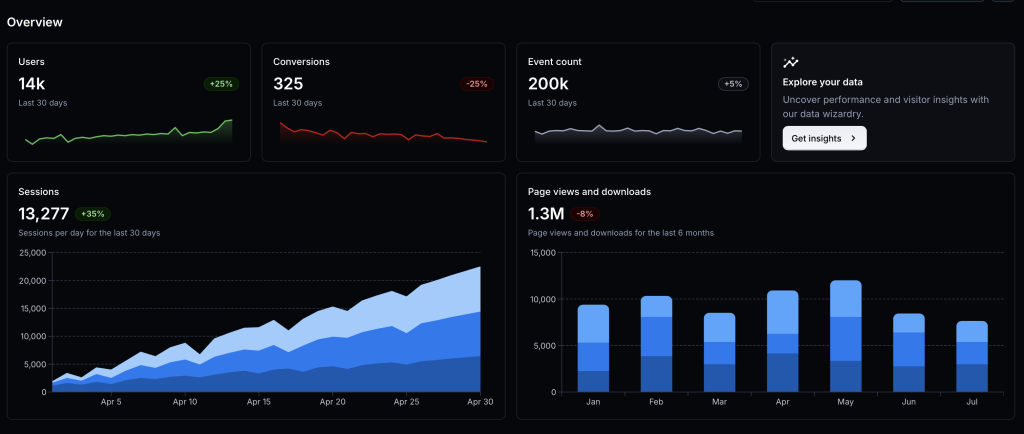
The UX should try to follow the general design pattern at https://mui.com/material-ui/getting-started/templates/dashboard/.

Here is a screen shot of the Material UI Dashboard Template that is referenced.

For now we need the cards for:

  • Accounts in place of Users with the active count below. We will add a data table for historical trends and a graph below it in the future.
    Clicking on the user count in the account card should redirect the UX to load the Manage Customers page at /wp-admin/network/admin.php?page=customer_list
  • Payments in place of Conversions with the total payment amount below. This too will eventually have trends stored in a data table that we will create later.

AI Summary

Junie Pro Summary

Completed setup and implementation prep for the accounting dashboard work in myslp-dashboard, including running required start-revision on branch accounting.

• Implemented Stage 1 accounting UI scaffold: new Accounting admin page, React entrypoint, and overview metrics/cards with click-through to Manage Customers.

• Added new files: include/accounting/MySLP_Accounting.php, src/accounting/accounting.tsx, and src/accounting/block.json.

• Updated integration points in include/MySLP.php and constants/version metadata in myslp-dashboard.php and package.json.

• Validation status: lint checks for new files passed (only a non-blocking TS import style warning noted earlier), diff checks passed, and you confirmed npm install + npm run build succeeded locally with generated build/accounting/accounting.js and build/accounting/accounting.asset.php present.

• Environment note: Junie shell still lacks local php tooling and direct GitHub auth; you requested follow-up guidance on PAT-based auth after task completion.

Junie Release Notes
• Scope: No new product-code changes were made after the previously summarized accounting dashboard work in myslp-dashboard.
• Skills/Environment updates this session: Reloaded skills via Vendors/JetBrains/relink_skills.sh; available skills now include /wordpress-release-notes.
• Code impact since last implementation summary: None.
• Build/Test status: No additional build or test runs were performed after the earlier confirmed successful npm install and npm run build for myslp-dashboard.
Included Previously Completed Work (for continuity)
• Added Accounting admin page scaffold and React entry (include/accounting/MySLP_Accounting.php, src/accounting/accounting.tsx, src/accounting/block.json).
• Wired menu/render integration in include/MySLP.php and version bump artifacts from start-revision (myslp-dashboard.php, package.json).

0 comments on “Store Locator Plus® Coding Best Practices”

Store Locator Plus® Coding Best Practices

Avoid Duplicate Code

When possible avoid duplicate code.

Duplicate code creates a larger code footprint to search through when trying to add new features are resolve bugs.

Duplicate code creates more workload for the PHP pre-compiler. This means it will consume more memory and processing time on every single PHP interaction.

Duplicate code consumes more space on disk, more space in the repositories, and in memory for processing.

Overall duplicate code makes the application less performant and more brittle.

0 comments on “Contact Us Loading On Every Page”

Contact Us Loading On Every Page

When a user is logged in, the application stack is calling \MySLP_Contact_Us::initialize on every page load on the MySLP SaaS system. This should only be loaded when a user is interacting with the Contact Us page in the app.

This is being called via \MySLP_loader in the myslp-dashboard code. This happens when plugins_loaded action hooks are called from WordPress per this code block:

	// Load the Customer Profile module AFTER history logger (pri; 15)
	add_action( 'plugins_loaded', function () {
		/**
		 * @return void
		 */
		function myslp_customer_interfaces_loader(): void {
			require_once( MYSLP_PLUGIN_DIR . 'include/customer_profile/MySLP_Customer_Profile.php' );
			require_once( MYSLP_PLUGIN_DIR . 'include/MySLP_Contact_Us.php' );
			require_once( MYSLP_PLUGIN_DIR . 'include/MySLP_Customer_Maintenance.php' );

			MySLP_Contact_Us::get_instance();
		}

		myslp_customer_interfaces_loader();
	}, 15 );

WordPress / SaaS Menu Ordering

WordPress

add_menu_page()


add_menu_page( 
string $page_title, 
string $menu_title, 
string $capability, 
string $menu_slug, 
callable $callback = ”, 
string $icon_url = ”, 
int|float $position = null 
): string
WordPress Default Admin Menu Positions
StandardNetwork Admin
2 – Dashboard2 – Dashboard
4 – Separator4 – Separator
5 – Posts5 – Sites
10 – Media10 – Users
15 – Links15 – Themes
20 – Pages20 – Plugins
25 – Comments25 – Settings
30 – Updates
59 – Separator
60 – Appearance
65 – Plugins
70 – Users
75 – Tools
80 – Settings
99 – Separator99 – Separator

add_submenu_page()

SaaS Menu Positions

Standard / UserNetwork Admin
1.10 – MySLP
myslp-dashboard
1.10 – Manage
MYSLP_MANAGE_MENU_SLUG
‘myslp-manage-menu’

10 – Customers
30 – History Log
50 – Cron : System
51 – Cron : User
80 – Database
70 – Addressess
1.20 – Store Locator Plus®
csl-slplus
1.30 – Config
MYSLP_CONFIG_MENU_SLUG
‘myslp-config-menu’

10 – Plans
15 – Plan Limits
20 – Plugins
25 – Email Settings
30 – Payments
70 – System Settings
80- Cache
2 – Dashboard2 – Dashboard
4 – Separator4 – Separator
5 – Posts5 – Sites
10 – Media10 – Users
15 – Links15 – Themes
20 – Pages20 – Plugins
25 – Comments25 – Settings
30 – Updates
59 – Separator
60 – Appearance
65 – Plugins
70 – Users
75 – Tools
80 – Settings
99 – Separator99 – Separator

Locator Style Architecture

This setting is stored in the options_nojs[‘style’] option setting.

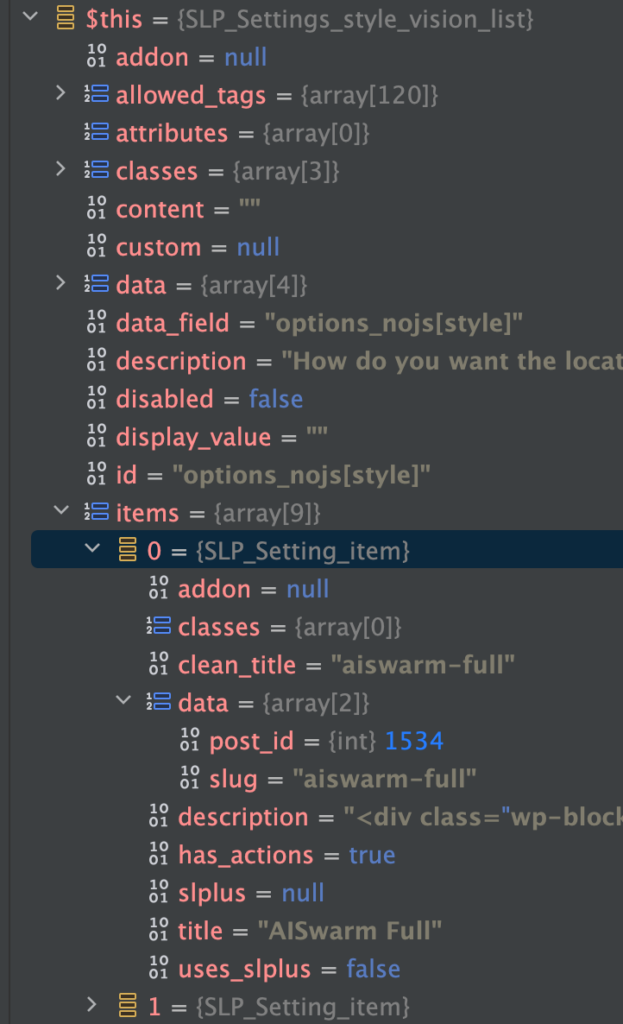
It is managed by an instantiation of the SLP_Settings_style_vision_list object.

  • data_field: options_nojs[style]
  • label: ‘Locator Style’
  • type: ‘style_vision_list’

This is a “smart option” managed by SLP_SmartOptions.
It is defined in \SLP_SmartOptions:view_appearance()
It has a ‘vue’ object type for rendering assistance.

Stack Trace : SLP | Settings

Triggered selecting – Menu : Store Locator Plus® | Settings

Most recent to oldest…

  • SLP_Settings_card_list.php:42, SLP_Settings_card_list->display()
    • SLP_Settings_Group.php:88, SLP_Settings_Group->display()
      • SLP_Settings_Section.php:94, SLP_Settings_Section->display()
        • SLP_Settings.php:384, SLP_Settings->render_settings_page()
          • SLP_Admin_Settings.php:289, SLP_Admin_Settings->display()
  • SLP_Settings_style_vision_list.php:15, SLP_Settings_style_vision_list->get_items()
    • SLP_Settings_card_list.php:28, SLP_Settings_card_list->at_startup()
      • SLP_Setting.php:48, SLP_Setting->initialize()
        • SLP_Admin_Settings.php:213, SLP_Admin_Settings->add_view()

Showing The Currently Selected Style

\SLP_Settings_card_list::display()

Renders the list of styles.

When $this->value === $item->clean_title it marks it as selected.

$item is from the list of locator styles fetched from the SLP locator style service (see \SLP_Settings_style_vision_list->items below).

Stack Trace : setting the initial value of the ‘style’ property (option)

\SLP_Setting->set_value() appears to have value already set to “”.

Track down the SLP_SmartOptions and how it loads the default values from options/options_nojs into the Smart Option properties.

  • SLP_SmartOptions.php:1784, SLP_SmartOptions->set_valid_option()
    • SLP_SmartOptions.php:1832, SLP_SmartOptions->set_valid_options_nojs()
      • SLP_SmartOptions.php:1661, array_walk()
        • SLP_SmartOptions.php:1661, SLP_SmartOptions->slp_specific_setup()
          • SLP_SmartOptions.php:1513, SLP_SmartOptions->initialize_after_plugins_loaded() SLPlus.php:386
            • SLPlus->initialize_after_plugins_loaded()

Class : SLP_Setting

Methods

set_value()

Sets the value of a setting.

Fetches the value of a setting from \WPOption_Manager::get_wp_option() if necessary.

Class : SLP_Settings_card_list

Extends SLP_Setting.

SLP_Setting type: “style_vision_list”

Class: SLP_Settings_style_vision_list

Extends SLP_Settings_card_list.

Properties

items : SLP_Setting_item[]

Contains the array of styles retrieved from the SLP Locator Styles service (REST call to external service).

value

Contains the currently set/selected style for the user.

Store Locator Plus® JavaScript Pub/Sub

Store Locator Plus® was updated with a “pub/sub” model a few years ago. This feature is a managed interface for jQuery Callbacks that allows disparate Javascript functions to interact with each other. It works much like hooks and filters in WordPress, but solely within the JavaScript runtime space.

The basic premise is any JavaScript function can call a “publish” method that fires off a stack of callbacks.

slp_Filter('slp_map_ready').publish(cslmap);

What is run by those callbacks is set by having a JavaScript module call a “subscribe” method.

slp_Filter( 'slp_map_ready' ).subscribe( this.initialize );

Architecture: Locations Bulk Action

Location bulk actions allow for users to work on multiple locations at once. Export a list of locations, delete select locations from the location table, geocode locations ,and more.

2209.12

Export locations is our first attempt at making bulk actions work more like a single page application.

Instead of doing a form post and submitting the location list, then reading in some PHP-driven variables to set the JavaScript behavior — in 2209.12 the export process bypasses the form submit.

Bypass is handled by using a pub/sub module with a dynamic filter name “exportBulkAction”. This tells the main SLP JavaScript process to execute the callback stack instead of pushing a form submit. This allows the AJAX call to happen immediately without a full page re-render.

2208.15

The apply button processing is handled in the main plugin’s admin.js file.

It uses jQuery to process form variables and prepare the #locationForm to be submitted.

When submitted it sends the request back to WordPress for standard “full page load” processing.

Architecture: Location Download

A feature provided in the Professional level service is a CSV export of locations via the Location Manager page.

2209.12

This process is being revised so that export bulk action works more like a single page application.

Also see the Bulk Action processor page.

2208.15

The process flow for the Locations : Export CSV…

The process starts with a standard form submit from the Bulk Actions “Apply” button.

WordPress sets up a JavaScript variable location_import that has info about the action “export”.

This triggers a jQuery(document).ready() call that fires another request via AJAX back to WordPress with some new parameters in place.

That AJAX call eventually sends back a CSV file that is stored in a DOM div that was prepared with the jQuery() document loader when the refreshed page (post original submit) was rendered.