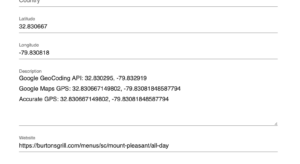
The ultimate objective for the project is to have AI write clear and concise end-to-end (E2E) test specifications in Cypress.IO.
Unlike standard PHP and JavaScript, which AI has become fairly proficient at when writing new code, it turns out writing Cypress test specifications appears to be a new challenge for AI. It is likely due to the fact that things like Cypress specifications are built on a myriad of higher level JavaScript layers, frameworks to be more precise, that are combined in novel ways. The AI has far less training with these models as few companies write E2E test cases for their applications and of those that do few publish online. These extra layers of logic also rely on some knowledge of the application output specifically the exact HTML structure that is rendered by the underlying SaaS application.
The theory we are testing in this research paper is that some AI models will be more proficient than others at writing complex Cypress.IO test specification. Our initial testing that led to this paper was the discovery that AI is straight up awful at writing Cypress test specifications. Even after multiple prompt revisions, AGENTS.md precursor rules to assist in writing better scripts, AI still struggles. We have yet to build an AI prompt stack that generates specifications that come anywhere close to a final proper specification.
This research is meant to find the best LLM as a foundation on which to build these prompt stacks.
When a user is logged in, the application stack is calling \MySLP_Contact_Us::initialize on every page load on the MySLP SaaS system. This should only be loaded when a user is interacting with the Contact Us page in the app.
This is being called via \MySLP_loader in the myslp-dashboard code. This happens when plugins_loaded action hooks are called from WordPress per this code block:
// Load the Customer Profile module AFTER history logger (pri; 15)
add_action( 'plugins_loaded', function () {
/**
* @return void
*/
function myslp_customer_interfaces_loader(): void {
require_once( MYSLP_PLUGIN_DIR . 'include/customer_profile/MySLP_Customer_Profile.php' );
require_once( MYSLP_PLUGIN_DIR . 'include/MySLP_Contact_Us.php' );
require_once( MYSLP_PLUGIN_DIR . 'include/MySLP_Customer_Maintenance.php' );
MySLP_Contact_Us::get_instance();
}
myslp_customer_interfaces_loader();
}, 15 );
The My Profile page is rendered as a React component as of the 2601.XX release. This is invoke using the WordPress blocks system via the JavaScript wp scripts helper in package.json.
Related PHP Classes and Methods
My Profile is managed via the MySLP Dashboard repo (Store-Locator-Plus/myslp-dashboard). The \MySLP_Customer_Profile class extends SLP_Base_ReactObject. SLP_Base_ReactObject is the Store Locator Plus class that acts as the helper to wire PHP data to the JavaScript interface using the defined WordPress blocks system. WordPress blocks are , at their core, React components.
SLP_Base_ReactObject JavaScript Variable Population
This is handled via the extendReactVars method, which is usually extended by child classes. The return PHP array end up populating the slpReact JavaScript variable.
Most of the MySLP (SaaS code) variables will return a sub-array named mySLP. This results in the JavaScript variable slpReact.mySLP which contains SaaS specific variables.
For example: $vars[‘mySLP’][‘subscription’] = $this->get_subscription_data();
The notifications stack uses the MySLP_Customer_Profile::add_notification to build an array of notification messages. These are then consumed by the React ProfilePanel component.
Related React Components
ProfilePanel in WordPress/wp-content/plugins/myslp-dashboard/src/profile/profile.tsx is the primary wrapper for the entire My Profile page React component.
Notifications are handled by a Snackbar component provided by the @mui/material React framework. It is driven by the JavaScript variables slpReact.mySLP.notifications array. Each element is an object with a message<string> and severity<string> property. If the notifications array is not empty, the Snackbar opens and the message stack is displayed. The severity element defines the style of the Snackbar message interface.
Here’s what “map view” (a.k.a. Map Views / mapview_count) covers on internal.storelocatorplus.com, plus where it shows up in the SaaS code paths you’re working with.
What “Map Views” means in MySLP
Map Views = $myslp->User->mapview_count, stored as user meta under the key mapview_count and exposed via the \MySLP_User magic getter/setter.
It’s treated as a subscription/billing usage counter (separate from geocoding usage and referer tracking).
How map views are counted (increment)
The docs state map views are incremented whenever \MySLP_REST_API::get_map_options() is called — “theoretically/assumed to be whenever the map is rendered.”
Practically: anything that triggers the “map options” REST call is part of the map-view counting surface area (including unexpected extra calls).
\MySLP_REST_API::get_map_options() is only called via the REST API endpoint: myslp/v2/locations-map
This REST endpoint lives in the rest_path JavaScript encoded variable. This fires from:
SLP style/LocatorPreview.js script
MySLP front-end/location.js
Where this is called via jQuery.ajax GET with properties…
url: … + rest_path (myslp/v2/locations-map)
data.action: get_myslp_data
data._jsonp: ‘initMySLP’
When map views reset
Map views reset to 0 via \myslp_extend_plan() (in the myslp-dashboard-helpers module), and internal docs list these callers:
\MySLP_Dashboard_Controller::check_subscription() (when a subscription was expired and is renewed automatically)
Profile update hooks (personal_options_update / edit_user_profile_update) via \MySLP_Customer_Maintenance::update_myslp_profile_management()
Where “map views” appear in user-facing subscription messaging
In plan-change logging/messaging: when a subscription changes, the message explicitly calls out map view limits and overage billing (“Each map view over this limit is billed at $X per N views.”). This is in the SaaS logging code you shared (log_subscription_changed()), and it references MySLP_User::VIEW_OVERAGE_PRICE and MySLP_User::VIEW_OVERAGE_BLOCKSIZE.
In renewal/extension logging: the History Logger includes “Prior month map views: %d” when extending a plan (if mapview_count is present). (That’s in the plugin code shown in your editor.)
Related “don’t confuse these with map views” items
Referer logging is not “map views.” Internal docs tie referer tracking to geocoding validation (slp_rest_geocode_invalid_referer) and note it’s called during geocoding requests, not every map render.
Referer tracking is stored in myslp->User->referer_urls
Extended via \MySLP_User::log_referer
Called via hook firing on slp_rest_geocode_invalid_referer via \MySLP::log_and_validate_referer
This is stored in the blog_option ‘user_subscription_status’
Operational/performance note: map renders can trigger multiple REST option reads
There’s an internal debugging write-up about excess option lookups during a “single map render,” discovered around SLP 5.13.8—specifically repeated lookups of option values (like label_directions). That’s relevant because map view counting is tied to a REST “options” call, and repeated calls can inflate usage and load if not controlled.
A separate internal post shows how map-related REST responses can differ (e.g., inline styles returned in the “locations-map” call), reinforcing that map rendering often involves REST payloads that can change between environments.
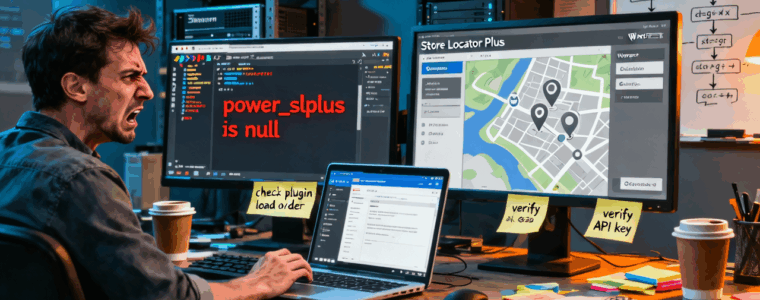
SLP should not allow the older version of Power (2511.06.01 or earlier) to run.
Got error 'PHP message: PHP Fatal error:
Uncaught Error: Call to a member function addon() on null
in /bitnami/wordpress/wp-content/plugins/slp-power/include/module/ui/SLP_Power_UI.php:41
From..
global $slplus;
$this->addon = $slplus->addon( 'power' );
Resolution
Must use Power 2511.06.02 with the latest version of SLP.
SLP had to be updated to test for the minimum version of the Power add on at 2511.06.02 or higher.
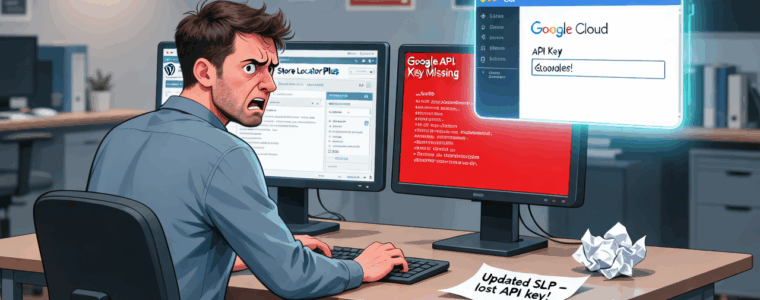
When testing a Store Locator Plus® for WordPress setup with the base plugin and Premier plugin active…
Google Maps JavaScript API has been loaded directly without loading=async. This can result in suboptimal performance. For best-practice loading patterns please see https://goo.gle/js-api-loading
On the WordPress Test Site (https://qc.storelocatorplus.com/) the Location Import feature of Store Locator Plus® for WordPress (SLP for WP) is not working.
Location import does work on the local Docker container.
Location import does work on staging and production versions of the SaaS application.
The version of the SLP, Power, Experience, and Premier plugins are the same on QC, localhost (the docker container), and the SaaS deployments.
Ensure the Store Locator Plus® and Power plugins are active.
Go to Store Locator Plus | Locations on the sidebar menu.
Click the import tab.
Click the upload CSV button.
Choose a sample CSV file like the one noted below.
Result
The import never starts. The progress meter never appears. No new locations that are in the CSV are added to the location list.
Expected Result
An import information window should show the circular loading progress meter and the location import count when finished. New locations appear on the location list.
Resolution
Status: Partially Resolved
Findings
Turns out that if a user downloads a new version of the Power add on (a zip file) and already has a prior version of the slp-power.zip file in the download directory on their laptop, the browser may create a new file named slp-power-2.zip without direct notification or confirmation it has done so.
If the user uploads this file to the WordPress installation it will create a NEW installation of the Power plugin at ./wp-content/plugins/slp-power-2/. This may or may not reside alongside a version of the older installation at ./wp-content/plugins/slp-power/ which is the standard installation path.
Even if a user deactivates and deletes the existing Power add on , which is best practice, before uploading the new slp-power-2.zip , the new path for the plugin will not match the prior path.
This causes the JavaScript for location imports included in the Power add on to not be loaded.
Workaround
Make sure the downloaded zip files for the plugin follow the standard naming convention:
SLP plugin should be named store-locator-plus.zip
Power add on should be named slp-power.zip
Deactivate and delete the installed versions of any plugins that are being updated.
Upload and install the most recent plugin zip file.
Meta
The Location Import feature is provided by the Power add on (a plugin that works with SLP for WP).
sl_id,sl_store,sl_address,sl_address2,sl_city,sl_state,sl_zip,sl_country,sl_latitude,sl_longitude,sl_tags,sl_description,sl_email,sl_url,sl_hours,sl_phone,sl_fax,sl_image,sl_private,sl_neat_title,featured,rank,category,category_slug,contact,contact_address,contact_email,contact_fax,contact_image,county,department,district,facility_type,first_name,identifier,introduction,last_name,marker,mobile_phone,notes,office_hours,office_phone,region,territory,title,training,year_established
5136,"Amalfi's Italian Restaurant & Pizzeria","664 Long Point Rd",#E,"Mt Pleasant",SC,29464,,32.83928400,-79.85446600,,,,,,,,,,,0,,,,,,,,,,,,,,,,,,,,,,,,,,
5138,"The Wine Bar","664 Long Point Rd","Unit G","Mt Pleasant",SC,29464,,32.83930200,-79.85423300,,,,,,,,,,,0,,,,,,,,,,,,,,,,,,,,,,,,,,
5140,"Burtons Grill & Bar","1876 North Highway 17",,"Mt Pleasant",SC,29464,,32.83029500,-79.83291900,,,,,,,,,,,0,,,,,,,,,,,,,,,,,,,,,,,,,,
Info Gathering Toward Resolution
Path Disclosure
Searching for the difference in the URLs in the JavaScript:
Added additional information to the SLP | Info | Environment tab within the SLP plugin showing the plugin directory and path.
updated \SLP_REST_Environment::get() to add new environment variables
If you upload slp-power-12.zip to a WordPress site your new power directory will be ./wp-content/plugins/slp-power-12/
That is NOT and issue if you’ve NEVER had power installed before (my plugins detect whatever random directory you put in the first time).
However if you UPDATE an existing Power plugin that was already installed at wp-content/plugins/slp-power with a zip file named slp-power-12.zip the app will break. First of all you’ll likely end up with TWO power plugins listed in your plugin directory. Out of habit you will likely delete the older one, which inevitably will be the one in wp-content/plugins/slp-power, leaving the revised path of wp-content/plugins/slp-power-12/ as the new path.
Plugin Update Best Practices
Rename your zip files to the base name only:
store-locator-plus.zip (or store-locator-le.zip if you are an original old-school SLP user from version 5 or earlier)
slp-power.zip
slp-experience.zip
slp-premier.zip
If it won’t let you, sort folder on your computer by name and delete the old copies…. then rename the downloaded zip file t one of the above.
Install the properly named zip file on WordPress:
First delete the original plugin (deactivate/delete) then upload the new zip file.
This process MIGHT work with the inline update like the pic below, but some systems cannot handle the duplicate directory on the server automatically (some do, but not all) . Thus it is safer to deactivate/delete first versus using the “fancy updater” that does an inline replace in WordPress.
The inline update process.
New Research : Reproduced On Localhost
I realized renaming the directory from slp-power to slp-power-2 (or 3) in the IDE will NOT change the mount point in the Docker container. To change that the Docker composer file needs to change the mount point of the volumes.
I created a new composer file that mounts the wp-content/plugins/slp-power directory in the IDE (on the host laptop for Docker) to wp-content/plugins/slp-power-2 in the Docker container.
Shut down the prior Docker container and started a new container with the revised path.
Sure enough, the Power import breaks if the Power add on is NOT installed in ./wp-content/plugins/slp-power/
This indicates an error in the base plugin (SLP) or Power add on that is not allowing the install path to be flexible. It skips loading the required JavaScript library.
Work Toward Resolution
UX Update Show Directories
Let’s show the add on directory paths in the SLP | Info | Environment panel.
Updated \SLP_REST_Environment::get() to show the directory path for any add on directly underneath the plugin version.
\SLP_BaseClass_Admin::enqueue_admin_javascript is the likely culprit which is NOT loading wp-content/plugins/slp-power/js/slppower-admin-locations-tab.js if the directory changes to wp-content/plugins/slp-power-2/js/slppower-admin-locations-tab.js
In the following code snippet from \SLP_BaseClass_Admin::enqueue_admin_javascript
In addition to the fix, I renamed wp-content/plugins/slp-power/js/slppower-admin-locations-tab.js to wp-content/plugins/slp-power/js/admin-locations-tab.js
This makes it more consistent with other plugins. It also allows \SLP_BaseClass_Admin::enqueue_admin_javascript to be simplified to: case 'manage_locations': $files = array( 'js/admin-locations-tab.min.js', 'js/admin-locations-tab.js' ); break;
Power 2511.05.01 now requires SLP 2511.05.01 with the primary fix being in the SLP main plugin.