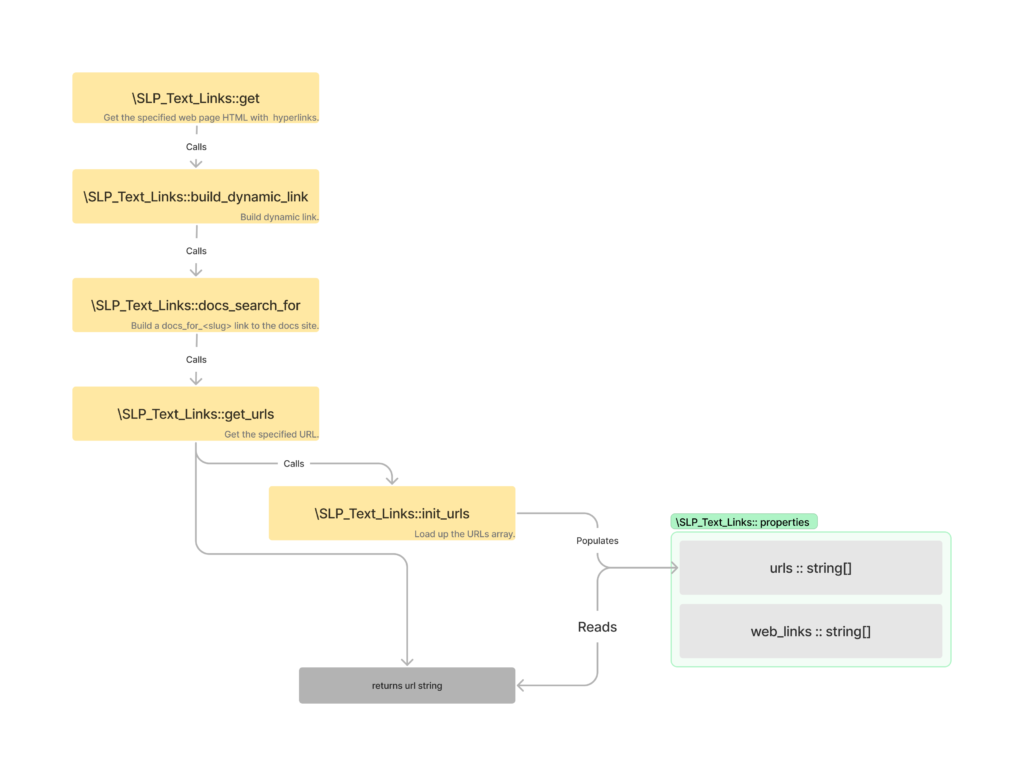
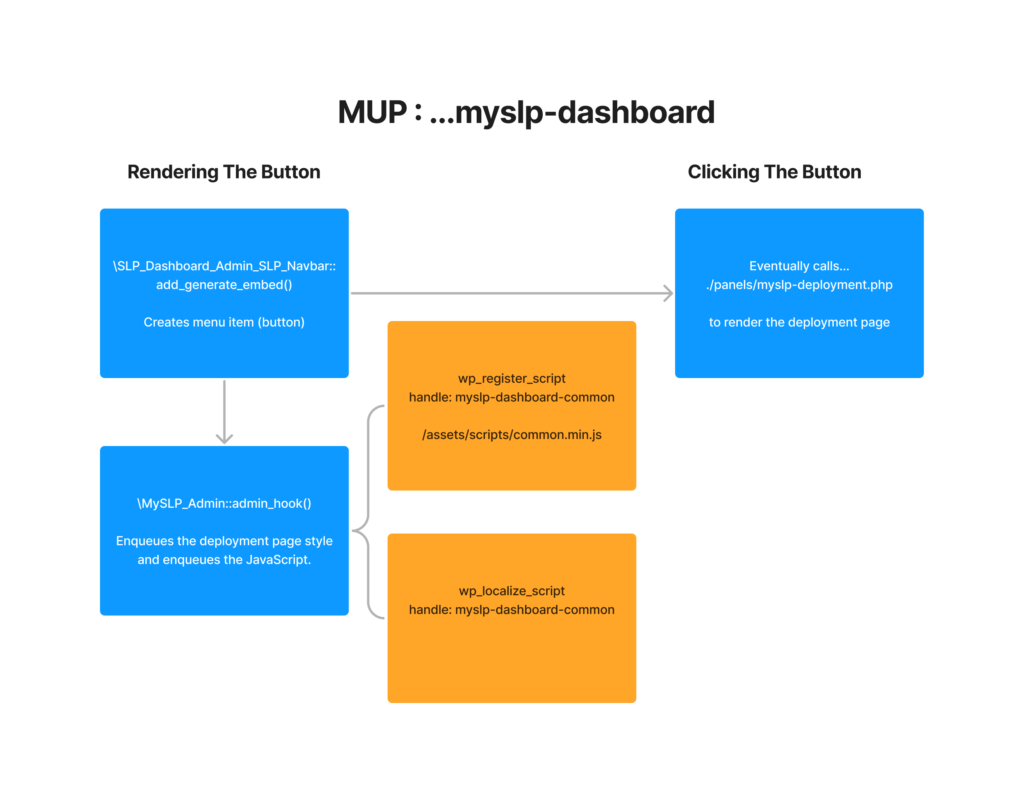
The process that happens when a plugin is updated, especially the conversion of pre-existing options to SLPlus options / options_nojs serialized JSON objects.
In older releases , including some vestiges that still existing in 2209.X versions, options were stored in a WordPress option_name that match the plugin name. Such as option_name ‘slp-power’ for the power add on. Each add on had its own set of options.
When Smart Options were introduced into the SLP architecture there were two options that stored “all settings”. csl-slplus-options (aka “options”) stores settings that were not being localized and sent to JavaScript. csl-slplus-options_nojs (aka “options_nojs”) are the settings that are not localized. (In theory… both of these will be replaced with a single monolithic store in csl-slplus-options eventually and specific settings retrieved from JavaScript via a REST call).
The idea was to eventually (soon?) convert all separate plugin-specific option settings like option_name = ‘slp-power’ into a standard csl-slplus-options string. Below is the flowchart that describes how that conversion happens.
Store Locator Plus® was updated with a “pub/sub” model a few years ago. This feature is a managed interface for jQuery Callbacks that allows disparate Javascript functions to interact with each other. It works much like hooks and filters in WordPress, but solely within the JavaScript runtime space.
The basic premise is any JavaScript function can call a “publish” method that fires off a stack of callbacks.
slp_Filter('slp_map_ready').publish(cslmap);
What is run by those callbacks is set by having a JavaScript module call a “subscribe” method.
Location bulk actions allow for users to work on multiple locations at once. Export a list of locations, delete select locations from the location table, geocode locations ,and more.
2209.12
Export locations is our first attempt at making bulk actions work more like a single page application.
Instead of doing a form post and submitting the location list, then reading in some PHP-driven variables to set the JavaScript behavior — in 2209.12 the export process bypasses the form submit.
Bypass is handled by using a pub/sub module with a dynamic filter name “exportBulkAction”. This tells the main SLP JavaScript process to execute the callback stack instead of pushing a form submit. This allows the AJAX call to happen immediately without a full page re-render.
2208.15
The apply button processing is handled in the main plugin’s admin.js file.
It uses jQuery to process form variables and prepare the #locationForm to be submitted.
When submitted it sends the request back to WordPress for standard “full page load” processing.
The process starts with a standard form submit from the Bulk Actions “Apply” button.
WordPress sets up a JavaScript variable location_import that has info about the action “export”.
This triggers a jQuery(document).ready() call that fires another request via AJAX back to WordPress with some new parameters in place.
That AJAX call eventually sends back a CSV file that is stored in a DOM div that was prepared with the jQuery() document loader when the refreshed page (post original submit) was rendered.
All development is done on personal forked copies (origin) of the primary Store Locator Plus® repositories (upstream). Upstream is considered the “single source of truth” for the current code state.
To begin work, fork the main Store Locator Plus® repository (upstream) to a personal repo (origin).
When code is ready to be integrated with current ongoing development effort, issue a pull request for your origin:update/<something> (see branch conventions below) branch into the upstream:develop branch. When the pull request is approved and merged, the upstream:develop branch be ready for the rest of the team.
Monitor upstream:develop regularly and be sure to fetch-and-merge (aka “pull”) the upstream:develop branch into origin:develop. Any in-progress origin:update/<something> branches that have not had a pull request issues against upstream should be rebased onto the new origin:develop branch. Make sure all conflicts are resolved.
Store Locator Plus® uses SCSS files compiled by the Sass application to generate the custom CSS files for the application. To process these files you’ll need to have a builder application, such as Webpack via Node, or an IDE with a file watcher in place. Proper generation of the CSS compilations is critical to creating a proper application interface.
Eventually our process will move to a managed script to build the application stack as we move toward JavaScript interfaces, such as React, as a core of the user experience. In the meantime the IDE file watcher approach is in place.
A new reports interface is coming in the 2208.15 release based on preliminary work with the React API library. In addition to the simplified interface , the new reports provide more controls over the data table. Some new features include a date selector that auto-refreshes the data table, ability to filter rows, select which columns to display, or change the display density. The export CSV now honors the column display and filter settings. There is also a new “direct to print” option.
The production branch. This branch should always point to production releases – the code released to the public or in use on production systems.
Staging
The release candidate branch. Prerelease plugins or the plugins/components that are published to dashbeta for the SaaS offering.
Test / Develop
The branch being used for testing integration of ongoing development branches.
Version Identifiers
Starting in August 2022 all product versions will follow a YYMMDD.xx standard where YYMMDD is based on the development start date for primary product releases (Store Locator Plus® for WordPress, MySLP Dashboard,etc.) For related product releases (Power, Front-End, etc.) the date should try to match the main product/service it is related to but this is not a strict rule – rather a suggest to help users easily identify related releases.
The YYMMDD should be 2 digits each and xx should always start at 01 for the first revision. For example 220815.01 is the first iteration for an app that started development on 220815.
Code Formatting / Linting
JavaScript
The preferred linting library is ESLint due to the ongoing React support.
With the re-listing of the Store Locator Plus® WordPress plugin in the WordPress plugin directory, there has been a notable increase in outward scaling of the Store Locator Plus® application cluster. Key Store Locator Plus® websites and services run on horizontally scalable cluster built on AWS Scaling Groups, AWS Load Balancer, and EC2 instances. Every night starting around midnight EST the scaling group adds one node per hour until 3AM EST at which point they start scaling back.
The AWS cluster is handling the load well, but we want to investigate in case there is something else going on. Scaling can be caused by a number of issues including network attacks, application misconfiguration, coding errors, routine bot traffic, or routine customer interaction patterns. It is best to get insight into the issue and know for certain the root cause.
This article walks through a real-time analysis of the events and traffic patterns that are triggering the scaling.
Background
The AWS Scaling Group that manages the Store Locator Plus® cluster is configured to monitor average CPU usage over time and add nodes to the cluster when the servers start to climb above 80% utilization. This is often an early indicator of impending server overload and a good baseline metric on which to base scaling events.
These events are triggered almost nightly at the same time. This typically indicates a routine scheduled process such as a site crawler via a bot (aka spider) or a scheduled routine running on a customer’s website.
The latest scaling event started at 11:55PM EST last night, so we’ll start there.
First Stop : AWS Dashboard
We want to verify our timestamps with more specificity as the email notifications are not necessarily precise.
AWS Scaling Groups
We’ll look at the AWS Scaling Groups first. We have monitoring enabled and can get a quick overview of the group activity.
We can see the instance count jump from our baseline of 2 nodes to 3 nodes almost exactly at 03:56 UTC. Remember AWS mostly notes times in UTC, which puts us at 11:55PM EST. The traffic drops back to baseline at 13:34 which is around 9:34AM EST.
We can also look at our aggregate EC2 instance metrics for all instances that are part of this scaling group. We can see the bulk of CPU usage starts to fire up around 03:48 UTC but really kicks in an hour later around 4:48 UTC before regularly grinding away from 5:48 UTC through 7:48 UTC. The pattern looks a lot like an external process, possibly a bot.
Inbound network requests on the EC2 instances reflects the same with a single 502Mbps spike starting at 05:03 UTC.
Inspecting EC2 Logs
While our load balancer is logging access to an S3 bucket, it is often difficult to locate and parse the logs with the volume of requests being pushed to the bucket every day. While there are log parsing and reporting services out there, there is a faster way to get insight into requests — looking at the local disk logs on a running EC2 instance in the cluster.
If you are lucky one of the current nodes will be running as part of the cluster that was online for the entire event. Given the span of time and amount of traffic the single node will provide a reasonable cross-section of requests, starting with logging 50% of the requests as part of the 2-node cluster to start with. We can assume it was logging at least 33% of the requests during the initial spikes as the cluster expands to 3 nodes.
Since our nodes are all running some form of web application, we want to check our web server (nginx) log files in /var/log/nginx. Keep in mind the EC2 servers are configured to be in the data center’s time zone, so the log files for our US-East-1 zone servers will be in EST. We want to look between 11:55PM EST and 9:34AM EST with a focus on the 1:48 – 6:48AM EST entries.
Bad Actor In Log Files
The nginx access log have the fingerprints of a brute force attack against the server around 01:28 EST (05:30 UTC). Many of the URLs here are known weak points in apps that may be running on a server (not ours though). These can be blocked by a Web Application Firewall update on AWS, a service that provides edge-of-cloud protection and can keep the network requests from reaching our cluster in the first place.