Goal: At the top of the Locations | List interface there is a search box for locations. This is currently rendered and managed with PHP+HTML+jQuery. Add this to the new React LocationsTableHeader component and deprecate the legacy code.
Research
Current UI/UX
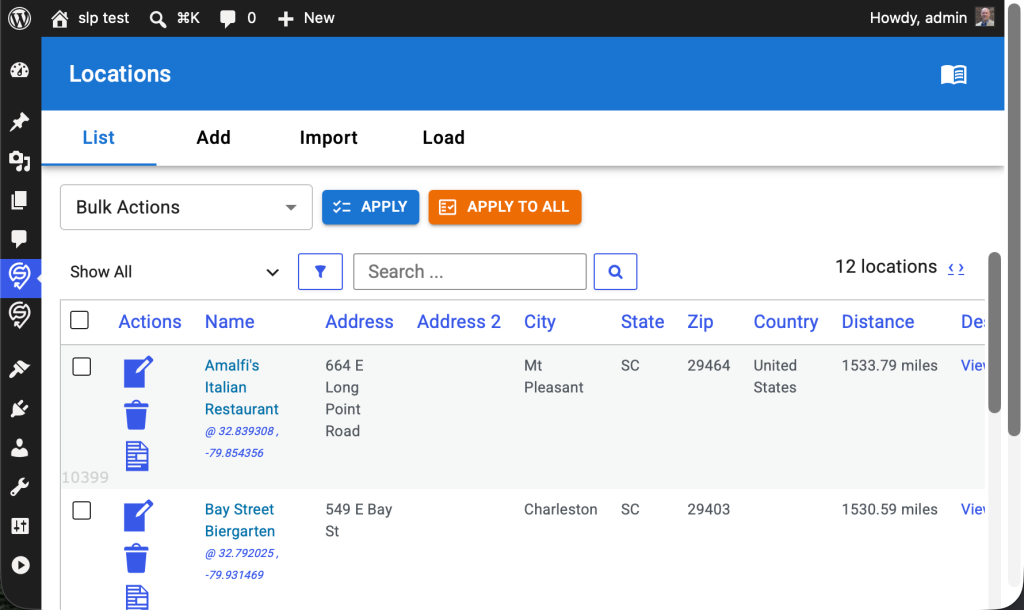
Existing LocationsTableHeader React Component
Typescript File: wp-content/plugins/store-locator-plus/src/components/locations/LocationsTableHeader.tsx
Legacy PHP+HTML Search Interface
HTML output string is generated in \SLP_Admin_Locations::createstring_SearchBlock.
This uses HTML based onkeypress and onClick attributes to trigger JavaScript actions.
Pressing enter in the search box or clicking on the search icon runs the jQuery-driven AdminUI.doAction(‘search’)
Development
Create A New LocationsSearch React Component
Create a new LocationsSearch React component that is a sibling of the LocationsBulkActions React component.
Create a search input box with a search icon button after that triggers the search.
UI/UX Updates
- In LocationsTableHeader use MUI components to wrap all children that will allow for horizontal stacking of children.
- LocationsTableHeader should take 100% of the width of parent .react-wrapper div.
- If the children don’t fit
- wrap the entire child component to the next line
- do not use a horizontal scroll bar
- Place the new LocationsSearch React component to the right of the LocationsBulkActions component.
- All of for a future LocationsFilter component to be placed between the LocationsBulkActions and LocationsSearch components.