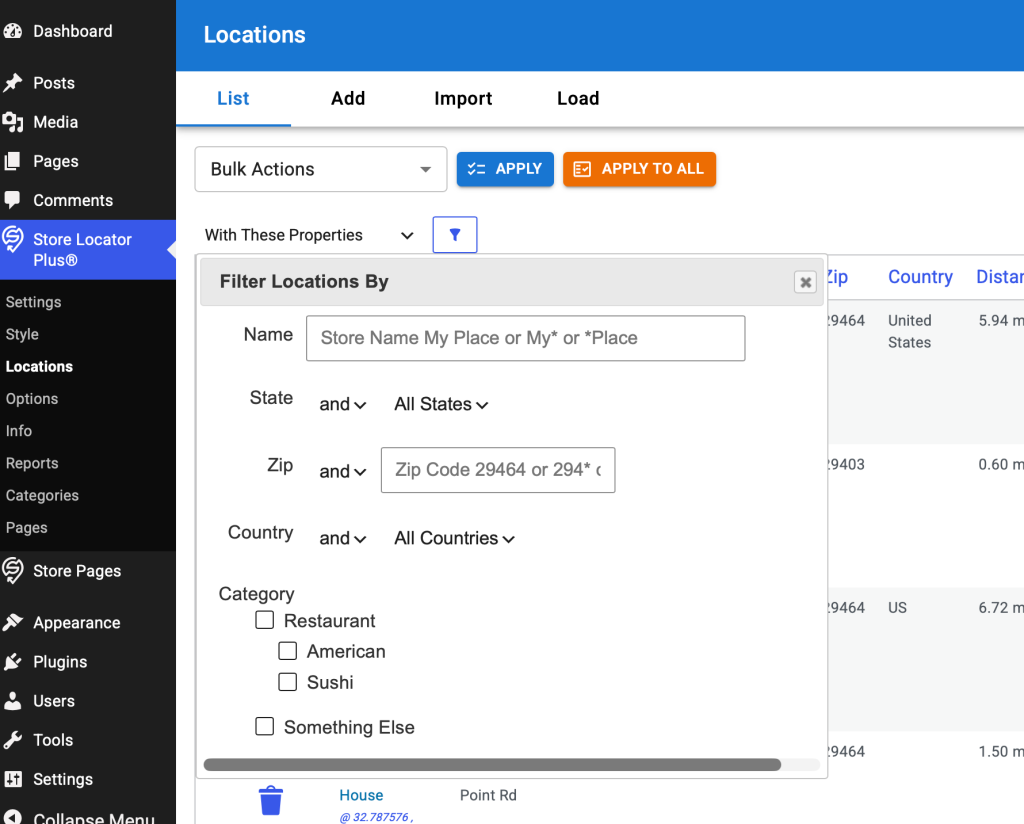
\SLP_Admin_Locations::createstring_FiltersBlock creates the HTML string to render on the locationForm. This fires the custom WordPress filter slp_locations_manage_filters to build an object array of properties for the drop down menu. It builds up the $baExtras string if any object in the array has an ‘extras’ as a property. It uses the $baExtras to build a dialog box modal attached to the #locationForm HTML Form on the page to add extra properties to form submissions. This dialog is shown when specific drop down elements are selected.
This filter is only used by the Power add on to extend the filter array of objects noted above. The method that extends the array is \SLP_Power_Admin::filter_LocationsFilters.
Two filter drop down entries create extended modal dialog box interfaces:
The modal dialog content when “With These Properties” (filter_by_property) is picked on the filter drop down.
Development
Follow the same design principles behind the Bulk Actions rewrite to make a React-based component for the location filters interface.
Create a new LocationsFilter component that is a sibling to the LocationsSearch and LocationsBulkActions (wp-content/plugins/store-locator-plus/src/components/locations/LocationsBulkActions.tsx) components. Use a style similar to that for bulk actions. Do not add an apply and apply to all button, instead use a filter icon button to submit the drop down selection.
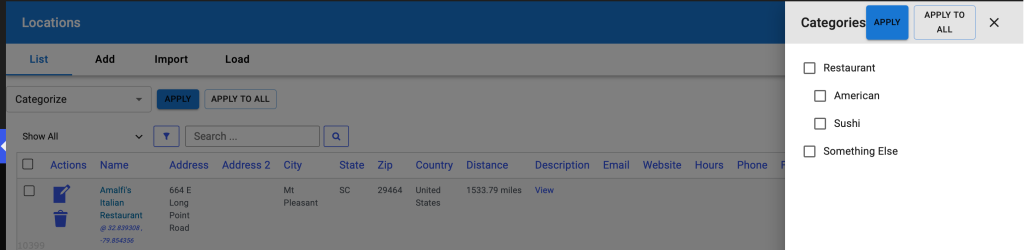
Instead of a dialog box, use the same style slide out drawer used for Bulk Actions “categorize”. Slide out from the right side, attached to the same parent div as the Drawer for the categoryDrawer. Create the input elements in the same slide drawer as the categories filter following the order:
Name : input box
Zip: input box
State : make this an accordion that is collapsed by default
Inside the accordion use a checkbox list for all the states, built form the database of locations
Country : make this an accordion that is collapsed by default
Inside the accordion use a checkbox list for all the countries, built form the database of locations
Category : make this an accordion that is collapsed by default
Use a checklist of categories similar to that created for the BulkActions categorize interface
Retain the legacy jQuery driven form submission process to submit and process these filters. Use styling similar to the Bulk Actions categorize drawer. Create new REST endpoints only if necessary to fetch a list of states or countries from the list of locations.
Remove any legacy code that has been replaced by the new React interface after validating functionality.
The selection on the bulk actions menu is executed via a jQuery on ‘click’ action that is attached to two divs posing as buttons.
The button interactions are driven via jQuery hooks that live in wp-content/plugins/store-locator-plus/js/admin-locations-tab.js The invocation hooks via jQuery on ‘click’ and the methods that are invoked are in the SLP_Locations_table_header “class” in admin-locations-tab.js.
Apply
Intended to run the action against the locations that have been checked off using the locations table checkboxes which is rendered with PHP and HTML.
DIV ID #do_action_apply
Apply To All
Intended to run against ALL locations in the database.
DIV ID #do_action_apply_to_all
Render Additional Metadata User Interfaces
Some of the items on the drop down menu allow for extra meta data to be set by the user. This meta data is sent along with the other form data for the locations table to the backend when the Apply or Apply To All buttons are processed via jQuery.
The only two use cases are for:
User category selection
attached to the ‘categorize’ dropdown item
shows the div with a checkbox list of categories available to locations when the users selects this dropdown item
the categories come from the WordPress taxonomy system using the SLPlus::locationTaxonomy (set to ‘stores’) property to determine the taxonomy label
User tag input
attached to the ‘add_tag’ dropdown item
shows a div with an input text box where the user can enter a string of comma separated values
The SLP_Admin_Locations class leverages multiple methods from the SLP_Settings class via \SLP_Admin_Locations::$settings to manage the current PHP/HTML/JavaScript heavy implementation. The $settings property and thus SLP_Settings class manages much of the PHP-to-React interfaces.
A primary method of “feeding” variables from WordPress, PHP, and the underlying SQL data is managed via the \SLP_Settings::get_vars_for_react method
Development
Pre-Existing Issue
With the Export, Hosted CSV bulk action and checking the first 5 items, the export worked but the “Location Processing Info” box with the download link cannot be closed from the UI.
This should close when clicking outside the box.
Consider changing the header in the confirmation modal to the action name, in this case “Export, Hosted CSV”.
Second Turn Review
UI/UX Issues
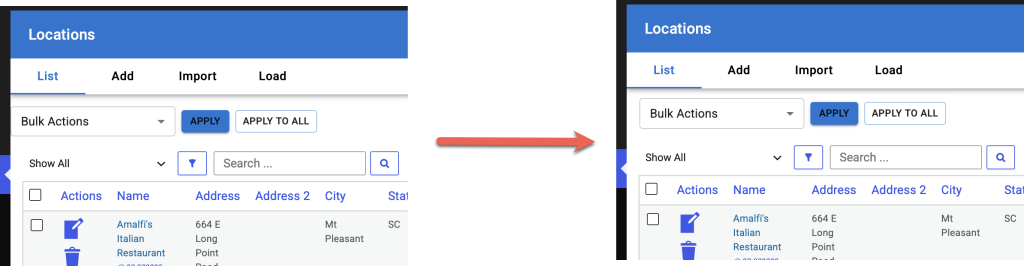
LocationsTableHeader component needs some left margin/padding to align with the legacy PHP-derived table output below. It should not be flush against the left sidebar menu interface.
The Apply / Apply To All / Close buttons on the revised Category slide out drawer look awful and needs to follow modern design best practices.
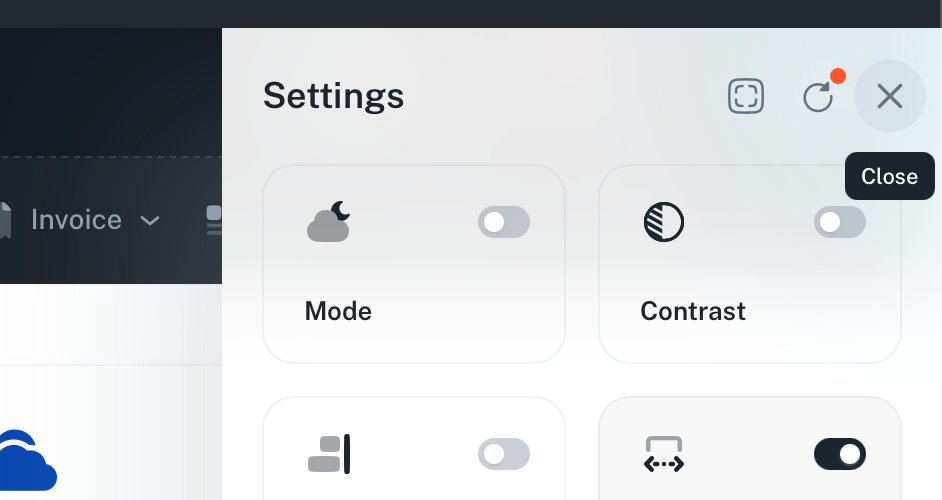
Redesign the header of the slide out to follow a design like this:
A clear header box (white on white) with the text “Categorize Locations” instead of “Categories” in place of Settings in this example.
Use simple icons from MUI Icons with highlighted tool tips on hover (immediate, no wait)
CloseOutlinedIcon for close
ChecklistOutlinedIcon for Apply
FactCheckOutlinedIcon for Apply To All
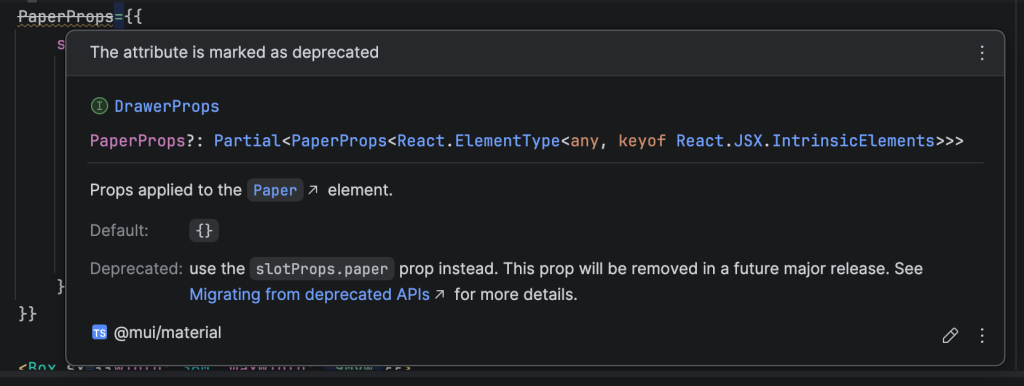
In addition, I see the LocationsBulkActions component is using a deprecated property in the Drawer component.
PaperProps is deprecated for MUI <Drawer…>
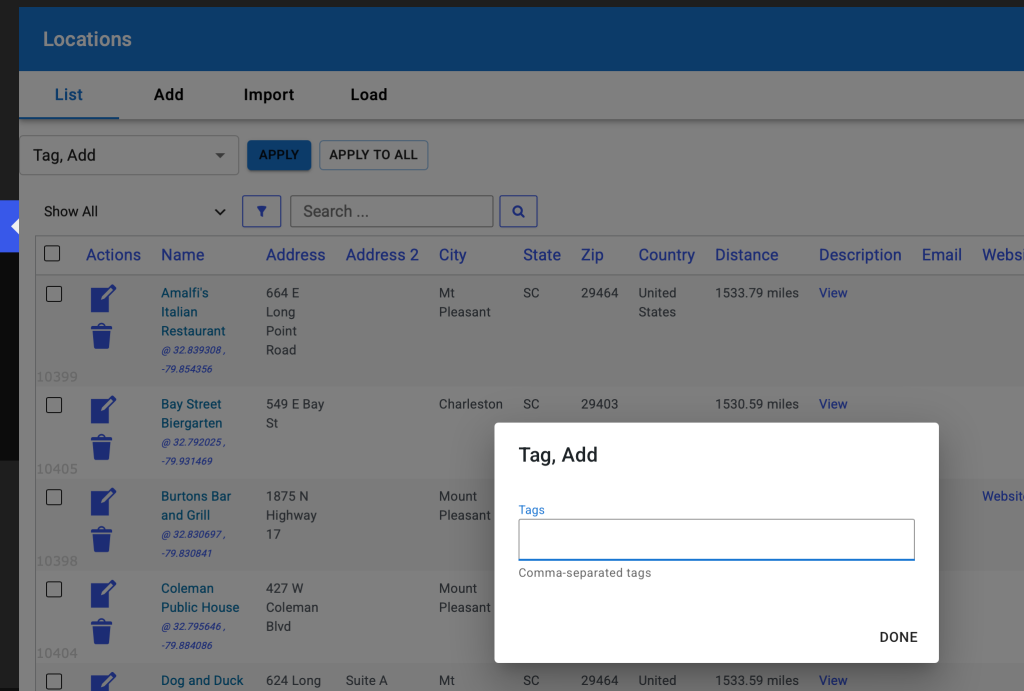
On the Tag, Add modal add the Apply and Apply To All buttons
Change “done” to cancel.
Follow the same implementation as the category slide out, fire the underlying “apply” and “apply to all” functions from the main bulk actions form.
Apply , Apply To All, and Cancel should all be action buttons on the bottom of the modal.
When this modal exits, reset the Bulk Actions drop down back to the default no action “Bulk Actions” selection (first selection) same as when the categorize slide out closes.
Initial Turn Review
UI/UX Issues
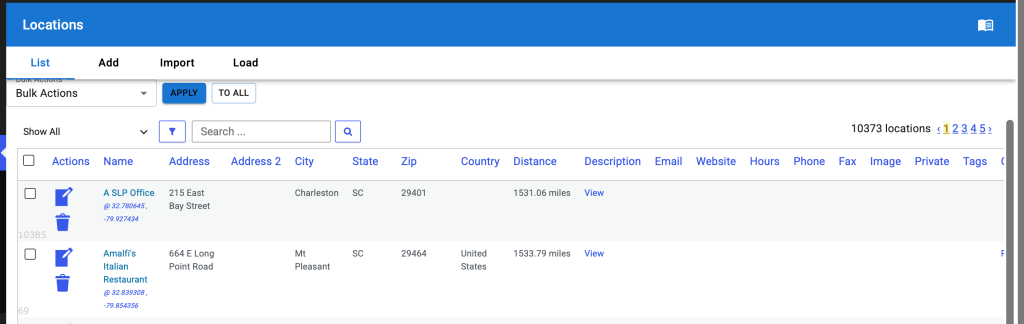
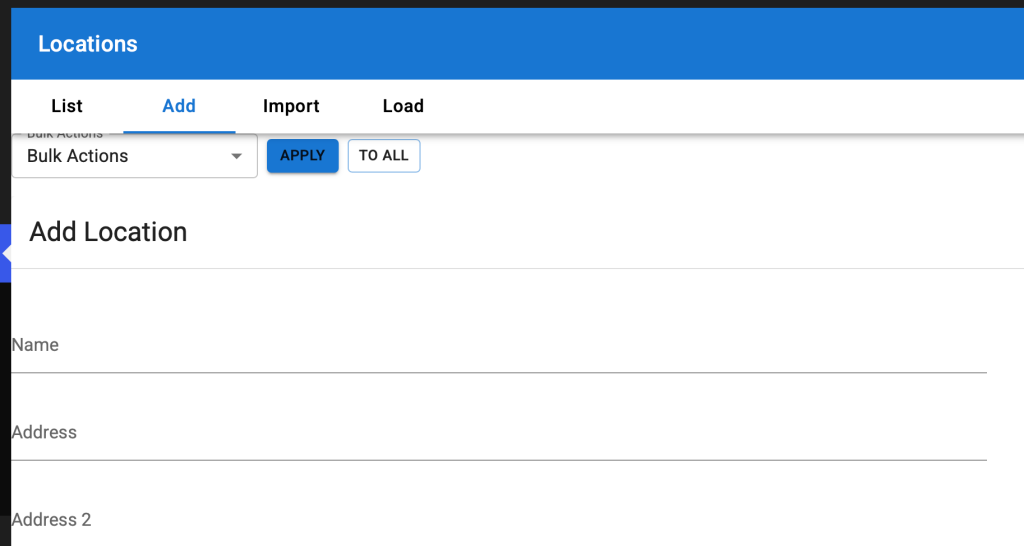
Do not need “Bulk Actions” label around the drop down selector AND the word “Bulk Actions” as the first entry in the drop-down menu.
If the Bulk Actions in the border around the selector is considered best practices for a Material UI interface, leave that one remove the “Bulk Actions” from the first entry in the drop down menu, otherwise remove the border and “Bulk Actions” label entirely.
The box containing the <LocationsBulkActions/> component needs some padding above it to provide visual separation from the AdminHeader page title and tab bar (horizontal menu).
Sort the drop down list of bulk actions alphabetically.
Change the text from “Stop Featuring Location” to “Feature Location, Stop”
Change the text from “Feature Location” to “Feature Location, Start”
Change the text from “Tag” to “Tag, Add”
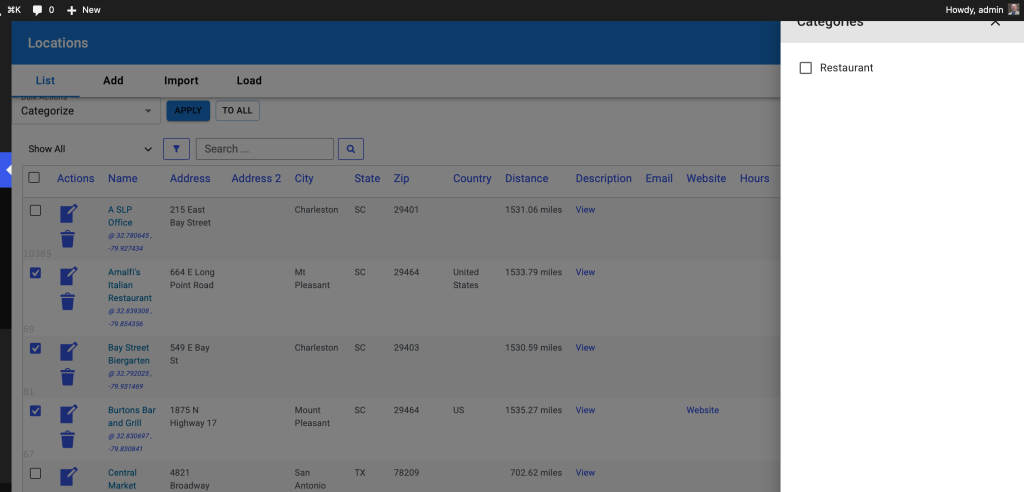
When choosing the Categorize bulk action, the side drawer does not render in the div#wpbody HTML element, causing the top portion to be obscured by the div#wpadminbar generated by WordPress.
When closing the Categorize slide-out the drop down menu should re-select the first entry
The issue is after closing categorize the user will need to select a different drop down entry to be able to show categorize again, this creates extra steps to re-draw the categorize slide out.
Add another pair of buttons to the top of the categorize slide-out for:
apply – does the same thing as the bulk action “apply” button
apply to all – does the same thing as the bulk action “apply to all” button
close the slide out after either slide out button or the slide out close icon is clicked
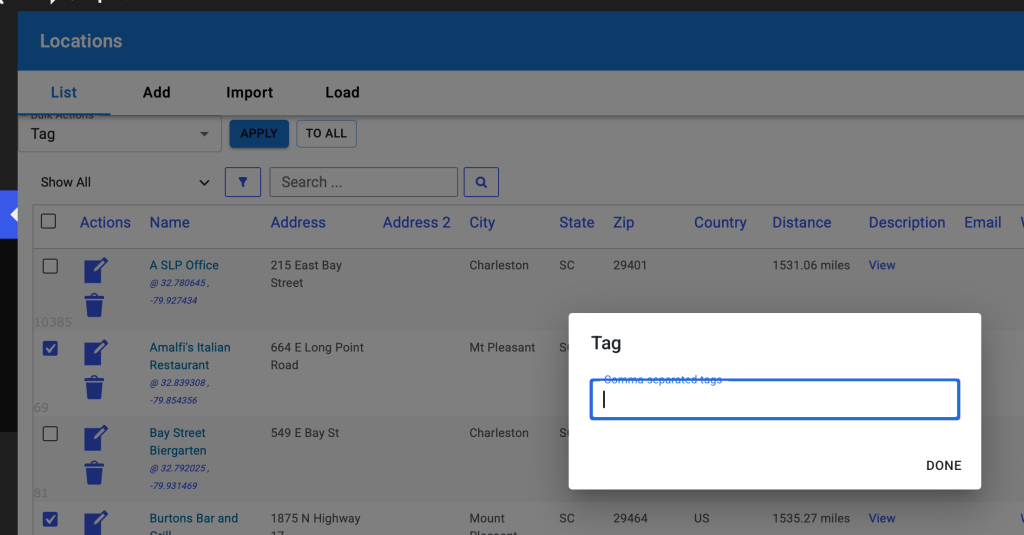
The extra meta input for the add_tags drop down entry has a label “comma separated tags” that is hard to read due to the border outline.
When going to other tabs on the Location page such as Add, Import, or Load, the new LocationsBulkActions component should be hidden, it only applies to the List tab.
Eventually the LocationsBulkActions will be within a TabPanel MUI React component driven by the tabs alongside the actual list of locations data table (currently rendered with PHP) and will be managed by the MUI tabs interface.
As such it may be prudent to wire this as a standard MUI TabPanel instead of inside a generic Box component and let the AdminHeader sections perform the standard tab-switching built into MUI.
Code Review
\SLP_Settings_manage_locations_table
In \SLP_Settings_manage_locations_table::get_bulk_actions_for_react the filter slp_locations_manage_bulkactions is applied. One of the filters calls \SLP_Power_Admin_Locations::extend_bulk_actions. Some of the entries in the returned array from \SLP_Power_Admin_Locations::extend_bulk_actions includes a lot of HTML stored in the ‘extra’ property of some of the array elements (see ‘add_tag’ and ‘categorize’ in \SLP_Power_Admin_Locations::extend_bulk_actions). The values in the array returned by the filter is then passed through \SLP_Settings_manage_locations_table::normalize_bulk_action_for_react which replaces any ‘extra’ properties with a simple string of ‘tag’ or ‘categories’. This makes all of the information stored in the ‘extra’ properties defined in \SLP_Power_Admin_Locations::extend_bulk_actions unnecessary. I have removed the excess overhead from \SLP_Power_Admin_Locations::extend_bulk_actions. This should have been caught in the code review process. Creating solutions is great. Leaving behind a mess of unused legacy code that is not longer useful is not great.
$baExtras is built from The List Of Dropdown Options that was extended via the slp_locations_manage_bulkactions filter.
LocationsTableHeader React Component
TypeScript source: wp-content/plugins/store-locator-plus/src/components/locations/LocationsTableHeader.tsx Part of the store-locator-plus plugin. New as of Store Locator Plus v2606.30.01
This is where the Bulk Actions will end up being rendered when this task is finished. Eventually we will add the location filters and search interfaces to the LocationsTableHeader component.
For this task I suggest creating a new component alongside (in the same directory as) the LocationsTableHeader React component named LocationsBulkActions. Render that in place of the existing “<p>Locations Table Header</p>” placeholder in the LocationsTableHeader component.
Setting Up The Dropdown List
Create a local get_vars_for_react method in SLP_Admin_Locations that extends the \SLP_Settings::get_vars_for_react method attached to the SLP_Admin_Locations\settings property.
It should store the bulk actions dropdown options in an array property that is added to the existing var being managed by the get_vars_for_react parent methods. When it reaches this new method in SLP_Admin_Locations\get_vars_for_react, which should call the $this->settings->get_vars_for_react() method first, the general properties available in the array should be:
Setting Up The Additional Metadata User Interfaces
For this element we are dealing with two fairly static components, a category checklist for the ‘categorize’ dropdown option and a text input for tags for the ‘add_tag’ dropdown option.
add_tag additional metadata interface
Since the underlying location tag data properties are always available, there is no need to only render this interface when the Power plugin is active. As such this can be directly added as a modal interface in LocationsBulkActions. The interface should only be shown when the ‘add_tag’ dropdown option is selected.
categorize additional metadata interface
This component should only be shown when the ‘categorize’ drop down is selected.
The list of category checkboxes may be better served being shown in a slide-out drawer attached to the right side of the page.
The context should be a checklist of the available categories from the WordPress taxonomy system for the \SLPlus::locationTaxonomy (‘stores’) taxonomy. The checklist should honor the hierarchy system of the category list, rendering children indented one level directly underneath their parent entry.
I suggest Axios and a REST endpoint to fetch the category list the first time the ‘categorize’ drop down option is invoked. Store the response in a state variable to prevent future REST queries during a single user interaction. Show a loading indicator while fetching the list of categories.