Goal: Conversion the filter interface on the Locations | List page to a React component similar to the Bulk Actions and Search Box updates.
Research
Existing \SLP_Admin_Locations::createstring_FiltersBlock Method
\SLP_Admin_Locations::createstring_FiltersBlock creates the HTML string to render on the locationForm.
This fires the custom WordPress filter slp_locations_manage_filters to build an object array of properties for the drop down menu.
It builds up the $baExtras string if any object in the array has an ‘extras’ as a property.
It uses the $baExtras to build a dialog box modal attached to the #locationForm HTML Form on the page to add extra properties to form submissions.
This dialog is shown when specific drop down elements are selected.
\SLP_Admin_Locations::createstring_FiltersBlock calls \SLP_Admin_Helper::createstring_DropDownMenuWithButton to help build the dropdown HTML.
Creates the dropdown HTML via \SLP_Admin_Helper::createstring_DropDownMenu and adds a div wrapper and an <input…> HTML element masquerading as an icon button to trigger the drop down processing.
The bulk of the dropdown HTML is created with \SLP_Admin_Helper::createstring_DropDownMenu.
This builds the basic <select> and inner <option…> HTML elements into a string.
The slp_locations_manage_filters Filter
This filter is only used by the Power add on to extend the filter array of objects noted above.
The method that extends the array is \SLP_Power_Admin::filter_LocationsFilters.
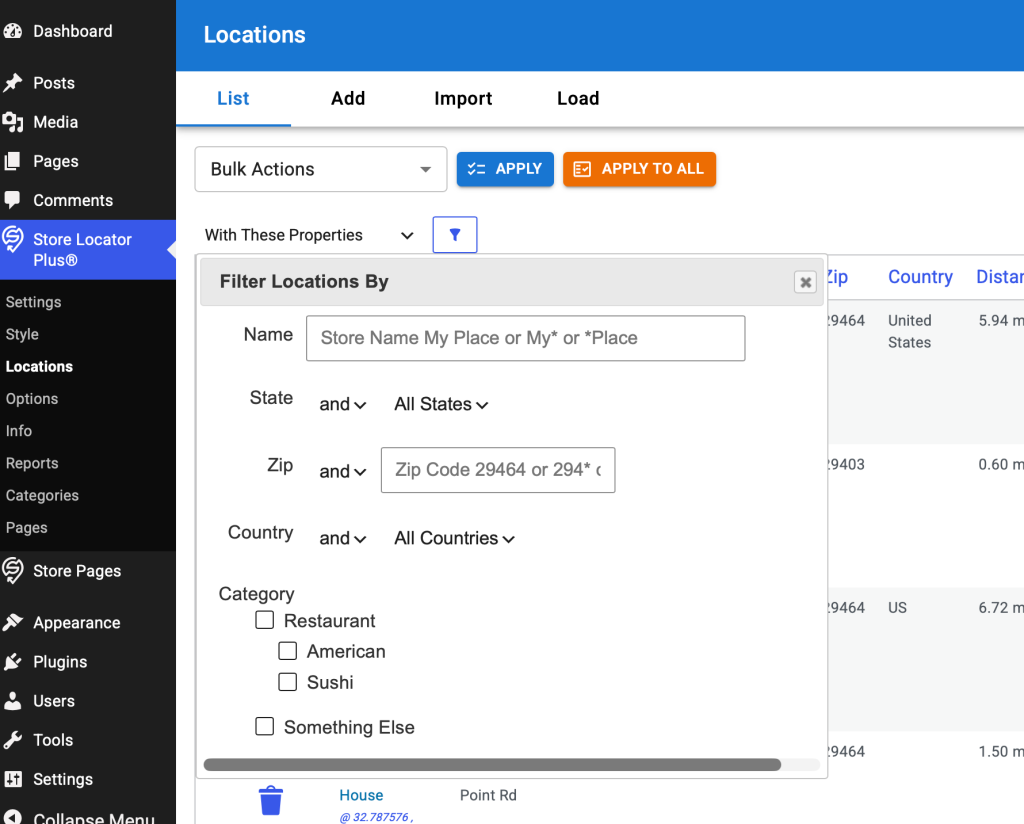
Two filter drop down entries create extended modal dialog box interfaces:
- filter_by_property which adds the ‘extras’ property via \SLP_Power_Admin::createstring_FilterByPropertiesDiv
- filter_by_category which adds the ‘extras’ property via \SLP_Power_Admin::createstring_FilterByCategoriesDiv
\SLP_Power_Admin::createstring_FilterByPropertiesDiv
Add an iframe with a misnomer id ‘power_csv_download’ (this has nothing to do with csv downloads here).
Inside the HTML for the various location properties is created inside of \SLP_Power_Admin_Location_Filters::createstring_LocationFilterForm
\SLP_Power_Admin_Location_Filters::createstring_LocationFilterForm uses various methods to build up HTML input selectors including:
- \SLP_Power_Admin_Location_Filters::createstring_FilterInput – create the Name input box
- \SLP_Power_Admin_Location_Filters::createstring_LocationPropertyDropdown – create a drop down list composed of all state (sl_state) entries in the locations data table
- \SLP_Power_Admin_Location_Filters::createstring_FilterInput – create the zip code input box
- \SLP_Power_Admin_Location_Filters::createstring_LocationPropertyDropdown – create a drop down list composed of all countries (sl_country) entries in the locations data table
- \SLP_Power_Category_Manager::get_check_list – create a checkbox list of WordPress categories for the SLPlus::locationTaxonomy (set to ‘stores’)
Development
Follow the same design principles behind the Bulk Actions rewrite to make a React-based component for the location filters interface.
Create a new LocationsFilter component that is a sibling to the LocationsSearch and LocationsBulkActions (wp-content/plugins/store-locator-plus/src/components/locations/LocationsBulkActions.tsx) components.
Use a style similar to that for bulk actions.
Do not add an apply and apply to all button, instead use a filter icon button to submit the drop down selection.
Instead of a dialog box, use the same style slide out drawer used for Bulk Actions “categorize”.
Slide out from the right side, attached to the same parent div as the Drawer for the categoryDrawer.
Create the input elements in the same slide drawer as the categories filter following the order:
- Name : input box
- Zip: input box
- State : make this an accordion that is collapsed by default
- Inside the accordion use a checkbox list for all the states, built form the database of locations
- Country : make this an accordion that is collapsed by default
- Inside the accordion use a checkbox list for all the countries, built form the database of locations
- Category : make this an accordion that is collapsed by default
- Use a checklist of categories similar to that created for the BulkActions categorize interface
Retain the legacy jQuery driven form submission process to submit and process these filters.
Use styling similar to the Bulk Actions categorize drawer.
Create new REST endpoints only if necessary to fetch a list of states or countries from the list of locations.
Remove any legacy code that has been replaced by the new React interface after validating functionality.